


IPTV Subtitles Not Working? A Practical Guide to Fixing Common Problems
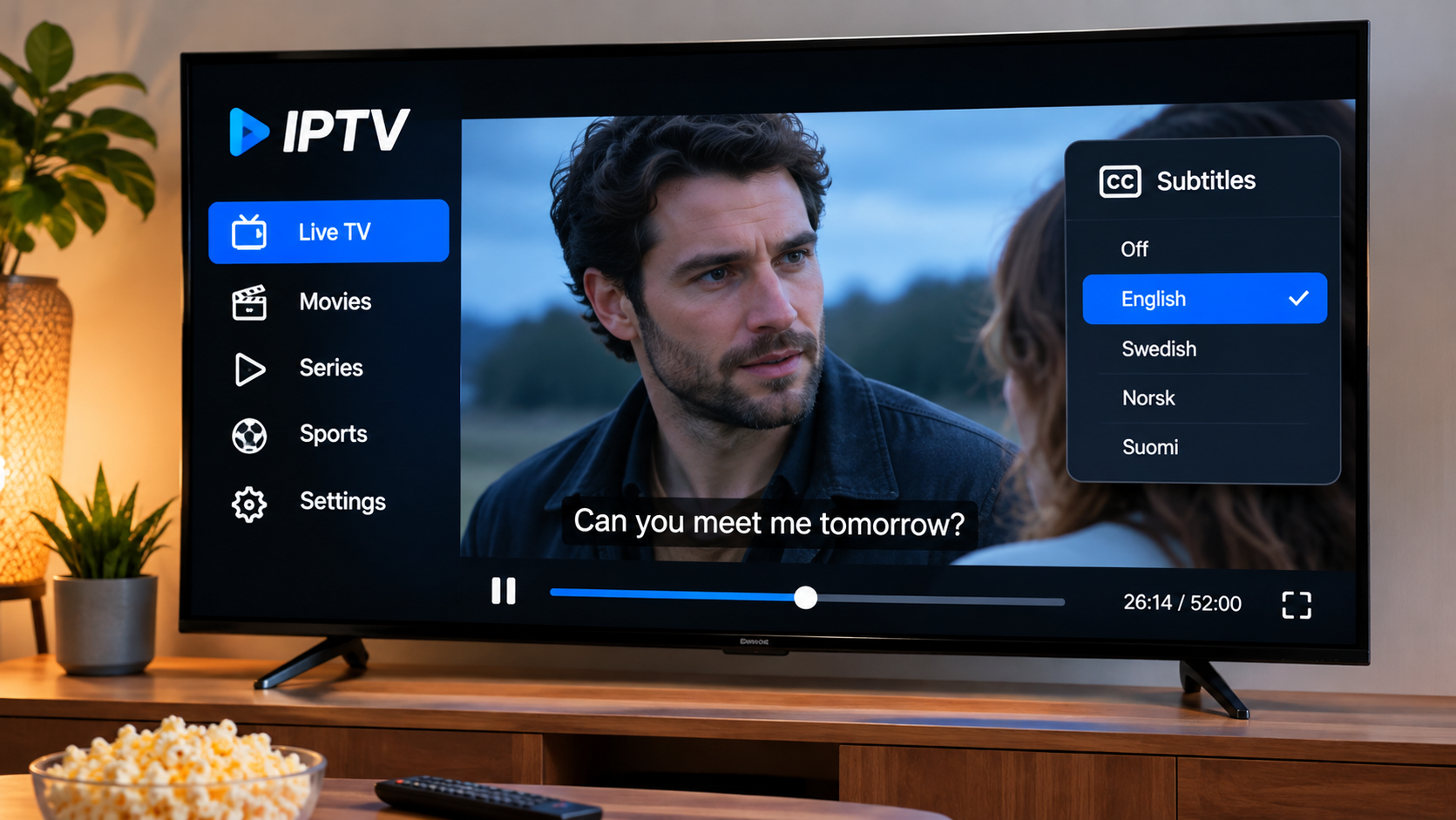
Subtitles can make a big difference when watching films, series, documentaries, and international television. They are useful when the dialogue is difficult to hear, when content is in another language, or when viewers simply prefer reading along.
On IPTV, subtitle support depends on several things working together. The stream needs to provide subtitle data, the IPTV player must recognize it, and the device needs to display it correctly.
When subtitles disappear or refuse to load, the problem is not always with the IPTV service itself. Sometimes the selected player, language settings, or device configuration is responsible.
Start by Checking Whether Subtitles Are Available
The first thing to confirm is whether the particular stream actually includes subtitles.
Not every channel, film, or episode provides them.
A player cannot display subtitle data that is not part of the stream or media file.
Try opening another film or series where you know subtitles are normally available.
If subtitles work there, the problem may be limited to the original content rather than the entire IPTV setup.
Look for the Subtitle Menu During Playback
Most compatible IPTV players include subtitle controls inside the playback menu.
While the video is running, open the player controls and look for options such as:
-
Subtitles
-
Closed captions
-
CC
-
Audio and subtitles
-
Language
-
Tracks
The exact wording depends on the application.
Sometimes several subtitle tracks are available, and the player may default to "Off."
Selecting the correct language manually can solve the problem immediately.
Check the Language Track
A stream can contain more than one subtitle track.
For example, a film may provide Swedish, English, Finnish, Norwegian, or other language options.
If the wrong track is selected, subtitles may appear in an unexpected language or may not appear at all.
Open the subtitle menu and test each available track.
This is especially useful when the player displays generic names such as "Track 1" or "Subtitle 2" instead of clear language labels.
Subtitle Support Varies Between IPTV Players
Two IPTV applications can behave differently with exactly the same stream.
One may display subtitles perfectly while another fails to detect them.
This can happen because players use different playback engines and support different subtitle formats.
If subtitles are important to you, test the same content in another compatible IPTV player.
People comparing IPTV applications, supported devices, and setup information for Sweden can also review FIRST CLASS IPTV when researching different IPTV configurations and player options.
The important point is to match the player to both the device and the features you actually use.
Common Subtitle Formats
Subtitles can be delivered in different ways.
Some are embedded directly in the video stream, while others exist as separate files or tracks.
Common subtitle formats may include:
-
SRT
-
WebVTT
-
ASS
-
SSA
-
Embedded subtitle tracks
Not every IPTV player handles every format equally well.
This is why changing the player can sometimes fix a subtitle issue without changing anything else.
Smart TV Subtitle Problems
Smart TVs provide a convenient IPTV setup because no extra device is required.
However, built-in applications can sometimes have more limited subtitle support than dedicated streaming devices.
If subtitles work on a phone or computer but not on the television, the TV application may be the difference.
Before replacing hardware, check whether the Smart TV IPTV app has:
-
A subtitle enable option
-
Language settings
-
A playback engine choice
-
An available software update
Restarting the television can also help after changing settings.
Android TV Usually Offers More Flexibility
Android TV devices often provide more choice when it comes to IPTV applications.
If one player does not handle subtitles well, another compatible player may work better.
This flexibility can be useful when a household regularly watches international films or multilingual content.
Some Android players also allow users to adjust:
-
Subtitle size
-
Text position
-
Font appearance
-
Background opacity
-
Language preference
These settings can make subtitles easier to read on a large television.
Apple TV and Subtitle Settings
Apple TV users may also have subtitle settings available both inside the IPTV player and within the device settings.
If subtitles are enabled in the app but still look incorrect, check the Apple TV accessibility or subtitle preferences.
The operating system can sometimes influence how caption text appears.
This is particularly useful when subtitles are technically working but are too small, too large, or difficult to read against the video.
Subtitles on iPhone and iPad
Watching IPTV on a mobile device creates different challenges.
The smaller screen can make subtitle text difficult to read if the font is too small.
Look for size or accessibility settings when available.
Landscape mode can also help because the video occupies more screen space.
If subtitle controls disappear when switching to full-screen playback, tap the screen once to bring the playback menu back.
Subtitle Timing Problems
Sometimes subtitles appear, but they do not match the dialogue.
Text may arrive several seconds too early or too late.
This is called subtitle synchronization or delay.
Some IPTV players include a subtitle delay setting.
A positive or negative adjustment can move the text forward or backward until it matches the audio.
If the delay changes constantly throughout the programme, the issue may be with the subtitle track itself rather than a simple timing offset.
Restart the Stream Before Changing Everything
If subtitles suddenly disappear during a programme, do not immediately reinstall the application.
Try closing the stream and opening it again.
The player may simply have failed to load the subtitle track correctly.
You can also switch to another channel or film and then return to the original content.
Simple refreshes often solve temporary playback problems.
Update the IPTV Player
An outdated application can cause compatibility problems.
Player developers may release updates that improve:
-
Subtitle detection
-
Video decoding
-
Audio support
-
Playback stability
-
Device compatibility
Check the official application store for an available update.
If the problem began after your device received a major operating-system update, the IPTV player may need its own update as well.
Try Another Player Before Blaming the Stream
A useful test is to open the same account and content in another compatible player.
If subtitles appear correctly there, the original IPTV application is probably the source of the issue.
If subtitles are missing in every player, the stream itself may not contain the expected subtitle track.
This kind of comparison is much more useful than changing several unrelated settings at once.
Check Audio and Subtitle Tracks Together
Multilingual content often contains several audio and subtitle tracks.
Sometimes switching the audio language can also change which subtitle options become available.
For example, a film may provide one subtitle track for the original audio and another for a dubbed version.
If the subtitle menu looks incomplete, check the audio options as well.
The relationship between the two can vary by content source.
Subtitles Can Look Different on Different Screens
The same subtitle track may appear perfectly readable on a laptop but too small on a television.
This is often a display setting rather than a problem with the subtitle file.
Look for customization options such as:
-
Font size
-
Font weight
-
Text colour
-
Background
-
Outline
-
Screen position
A simple change in size or contrast can make a major difference from normal viewing distance.
Avoid Placing Subtitles Too Low
Some applications allow subtitle position to be adjusted.
Placing text too close to the bottom of the screen can cause part of it to be cut off on certain televisions.
This may happen because of overscan or display scaling.
Moving subtitles slightly upward can solve the problem without changing the video itself.
External Subtitle Files
Some media players support loading an external subtitle file separately.
This is more common when watching local media files than live IPTV channels, but it can also apply to certain on-demand playback setups.
If the player supports external subtitles, the subtitle file usually needs to match the content correctly.
A subtitle file from a different version of the film may have different timing.
That can produce synchronization problems even when the file itself is valid.
Live TV Subtitles Can Work Differently
Live television subtitles are often handled differently from movie subtitles.
They may be delivered as broadcast captions or embedded data rather than as a separate file.
Support depends on the channel, stream, and player.
If subtitles work for movies but not live channels, that does not automatically mean something is wrong with the application.
The live source may use a format the player handles differently.
Do Not Change Too Many Settings at Once
Subtitle issues are easier to troubleshoot when you make one change at a time.
A simple order is:
-
Check whether subtitles are available.
-
Select another subtitle track.
-
Restart the stream.
-
Update the player.
-
Test another player.
-
Test another device.
This method makes it much easier to understand what actually fixed the problem.
Randomly changing language, video, audio, and network settings at the same time can make the issue harder to diagnose.
Internet Problems Usually Affect More Than Subtitles
Subtitles use very little bandwidth compared with video.
If the video itself is buffering badly, the internet connection may be the main issue.
If the picture plays smoothly but only subtitles are missing, the problem is more likely related to the stream, player, or subtitle track.
Separating these two situations can save time.
Keep the Device Updated Too
The IPTV player is not the only software involved.
Smart TVs, Android TV devices, Apple TV, phones, tablets, and computers all receive system updates.
These updates can change how applications handle video and text.
If subtitle problems appear after a device update, check whether the IPTV application has a newer version available.
Restarting the device after updates is also a sensible step.
When Subtitles Are Especially Useful
Subtitles are not only for foreign-language content.
They can also help when:
-
People are talking quietly
-
Background noise makes dialogue hard to hear
-
Several accents are used
-
You are watching late at night
-
The television volume needs to stay low
-
You are learning another language
For some viewers, subtitles are an occasional convenience. For others, they are an essential part of the viewing experience.
That makes subtitle support worth checking before settling on an IPTV player.
Final Thoughts
IPTV subtitle problems are usually easier to solve when you first determine whether the issue comes from the content, player, or device.
Start by checking whether a subtitle track is actually available. Then test the language options, restart the stream, update the application, and compare the same content in another player if necessary.
If subtitles work on one device but not another, the difference is likely related to software compatibility or device settings.
A player that handles your preferred subtitle languages reliably can make films, series, and international television much easier to follow, especially when combined with readable text size and properly synchronized timing.

 English
 Arabic
 French
 Spanish
 Portuguese
 Deutsch
 Turkish
 Dutch
 Italiano
 Russian
 Portuguese (Brazil)
 Greek