


Why Is My iPhone Microphone Not Working During Calls?
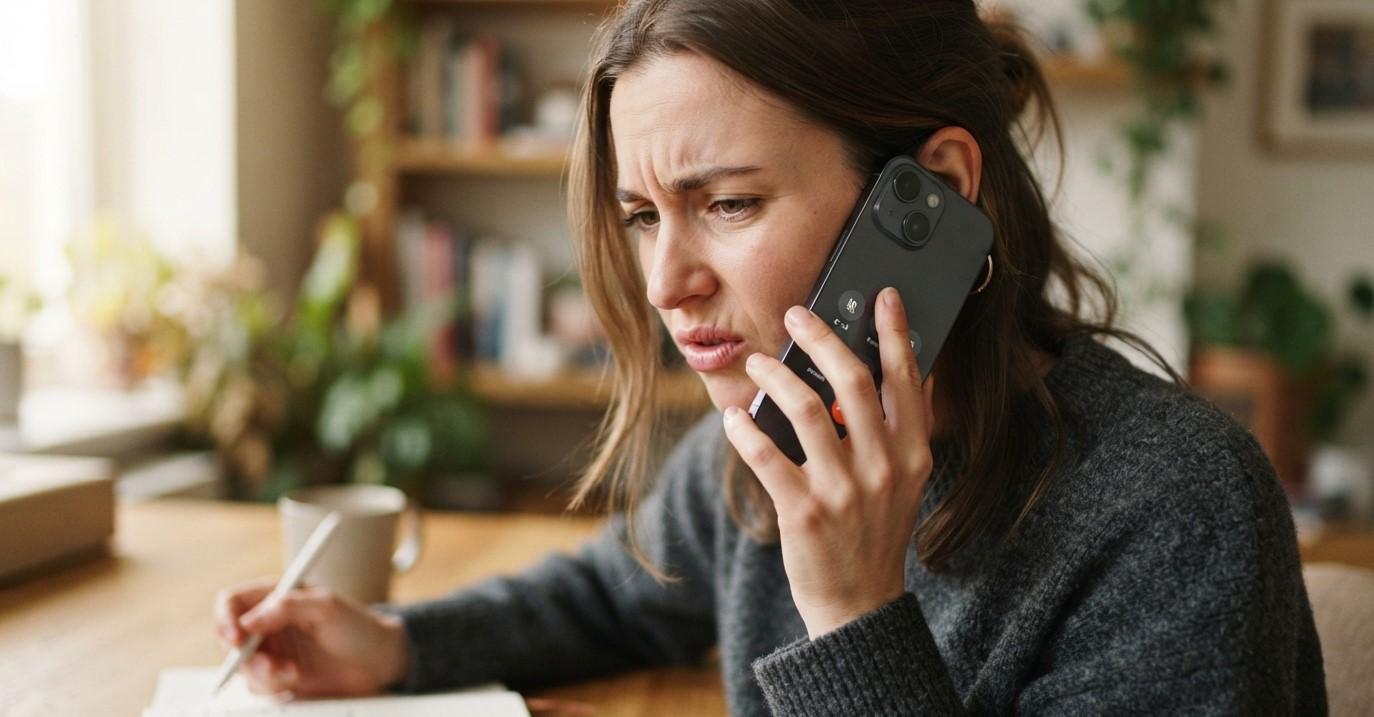
If people cannot hear you during iPhone calls, the problem can be frustrating, especially when your phone appears to be working normally otherwise. A blocked microphone opening, software issue, connected Bluetooth device, microphone permission, moisture, or internal hardware damage can all affect call audio. If you are looking for cell phone repair brooklyn ny, understanding the cause can help you decide whether you can troubleshoot the issue yourself or need professional assistance. Avenue D Cellular can help users experiencing microphone and other smartphone hardware problems, while those searching for iphone repair brooklyn may benefit from having persistent microphone issues properly diagnosed.
Before assuming that the microphone needs replacement, there are several simple checks you can perform. Apple recommends testing the microphones with Voice Memos and video recordings to determine whether the issue affects the microphone generally or only occurs during certain types of calls.
Table of Contents
- Why Is My iPhone Microphone Not Working During Calls?
- Common Causes of iPhone Microphone Problems
- How to Test Your iPhone Microphone
- How to Fix an iPhone Microphone That Isn't Working
- When the Problem May Require Professional Repair
- How to Prevent Future Microphone Problems
- Frequently Asked Questions
- Final Thoughts
- CTA
Why Is My iPhone Microphone Not Working During Calls?
Your iPhone uses multiple microphones for different functions, including regular phone calls, speakerphone calls, video recordings, and other audio features. Because of this, a microphone problem may appear differently depending on how you use the device.
For example, people may hear you clearly when you use speakerphone but not when holding the phone normally. In another situation, your voice may sound muffled in every call and recording.
The first step is to determine whether the issue is limited to phone calls or affects microphone performance throughout the iPhone.
Common Causes of iPhone Microphone Problems
1. The Microphone Opening Is Blocked
Dust, lint, dirt, or debris can collect around the small microphone openings on an iPhone. A case or screen protector can also interfere if it does not fit correctly.
Apple recommends removing cases or screen protectors and checking the microphone openings for debris.
Avoid inserting sharp objects into the microphone openings because doing so can potentially damage delicate components.
2. Your iPhone Has a Connected Bluetooth Device
If your iPhone is connected to wireless earbuds, a headset, a car system, or another Bluetooth accessory, the call may use that device's microphone instead of the iPhone's built-in microphone.
Try disconnecting Bluetooth accessories and making another call. During a call, you can also check the audio destination and select the appropriate option.
3. A Temporary Software Problem
Sometimes a temporary iOS problem can affect audio features. If the microphone suddenly stops working after an app, setting, or software change, restarting the iPhone can be a useful first troubleshooting step.
Keeping iOS updated can also help address software-related problems and improve overall device stability.
4. Microphone Permissions May Be Restricted
If the microphone works during normal phone calls but does not work in a particular communication app, the issue may involve microphone permissions.
Go to:
Settings > Privacy & Security > Microphone
Check whether the affected app has permission to use the microphone. Apple recommends reviewing microphone permissions when the problem occurs only in a specific app.
5. Moisture or Liquid Exposure
Liquid can interfere with microphone performance even when the phone appears to be functioning normally.
If the microphone problem started after exposure to rain, spills, humidity, or another liquid, avoid charging or repeatedly testing the device if you suspect moisture has entered the phone. Professional inspection may be necessary.
6. Physical Damage
A hard drop can damage internal microphone components, connectors, or other parts involved in audio processing.
If your microphone stopped working immediately after dropping the iPhone, especially if there are other problems such as speaker issues, camera problems, charging problems, or a damaged frame, hardware damage becomes more likely.
How to Test Your iPhone Microphone
Testing the microphone can help determine whether the issue is limited to phone calls.
Test With Voice Memos
Open the Voice Memos app and record yourself speaking normally. Play the recording afterward.
If your voice is clear, the microphone may be functioning properly for that recording path. If the recording is silent, extremely quiet, distorted, or unclear, there may be a broader microphone problem. Apple specifically recommends Voice Memos as a microphone test when people cannot hear you during calls.
Test the Microphone During Video Recording
Open the Camera app and record a video while speaking. You can also test different camera modes to determine whether microphone performance changes.
Apple recommends using video recordings to test microphone performance when problems occur with speakerphone calls.
Make a Regular Phone Call
Ask someone you trust whether they can hear you clearly.
Try speaking normally, then switch to speakerphone. If the results change between regular calls and speakerphone, this information can help identify which microphone or audio path may be involved.
How to Fix an iPhone Microphone That Isn't Working
Restart Your iPhone
A restart is one of the simplest troubleshooting steps for temporary software problems.
Turn the iPhone off, wait briefly, turn it back on, and make another test call.
Remove the Case
Take off your case and make another call. Some cases can partially cover microphone openings, particularly if the case is damaged, poorly fitted, or designed for a different model.
Carefully Clean the Microphone Area
Inspect the microphone openings for visible debris. If necessary, use a small, clean, dry, soft-bristled brush gently around the openings.
Apple recommends removing debris from microphone openings and advises using care when cleaning device openings.
Disconnect Bluetooth Accessories
Temporarily disconnect wireless headphones, car audio systems, and other Bluetooth accessories. Then make another call using the iPhone itself.
This can help determine whether an external microphone is being used instead of the iPhone's built-in microphone.
Check App Permissions
If the microphone works during regular calls but fails in a particular application, review that application's microphone permission under Settings > Privacy & Security > Microphone.
Check for iOS Updates
If the issue appears to be software-related, check whether an iOS update is available. Apple also recommends keeping software updated when troubleshooting call-related problems.
Check Your Network if the Problem Is Only During Calls
Not every call-quality problem is caused by the microphone itself. Cellular network or reception problems can also affect call quality.
If your recordings sound normal but phone calls remain problematic, try calling from another location and check whether the problem continues. Apple notes that network or reception issues can contribute to call problems.
When Does an iPhone Microphone Need Professional Repair?
Professional inspection may be appropriate when basic troubleshooting does not solve the problem.
Consider getting the phone checked if:
- Your voice recordings are consistently silent or distorted.
- Nobody can hear you during regular and speakerphone calls.
- The microphone stopped working after a drop.
- The problem started after liquid exposure.
- The microphone works intermittently.
- Your voice sounds extremely muffled even after cleaning.
- Other hardware features are failing at the same time.
- The microphone problem continues after restarting and updating the iPhone.
A technician can inspect the microphone openings, internal components, connectors, and other hardware to determine whether repair or replacement is appropriate. Apple also recommends seeking service when microphone problems continue after troubleshooting.
How to Prevent Future Microphone Problems
A few simple habits can help reduce the chance of microphone-related issues.
Keep the Microphone Openings Clean
Regularly inspect the openings for dust and lint, especially if you frequently carry your iPhone in a pocket or bag.
Use a Properly Fitting Case
Choose a case designed specifically for your iPhone model. Make sure the microphone openings remain completely unobstructed.
Avoid Liquid Exposure
Even if your iPhone has water-resistance features, unnecessary exposure to liquids can still create problems. Keep the phone away from spills and excessive moisture.
Handle Your iPhone Carefully
Drops can damage internal components that may not show visible signs of damage. Using a protective case and avoiding situations where the phone could fall can help protect the microphone and other hardware.
Frequently Asked Questions
Why can people hear me on speakerphone but not on a normal call?
Different microphones or audio paths can be used depending on how the call is handled. Testing with Voice Memos and video recordings can help determine whether the problem affects a particular microphone.
Why does my voice sound muffled on iPhone calls?
A blocked microphone opening, case obstruction, debris, moisture, software problems, or hardware damage can cause muffled audio. Start by removing the case and checking the microphone openings.
How do I know if my iPhone microphone is damaged?
Record yourself using Voice Memos and test video recording. If your voice consistently fails to record properly across multiple tests, the microphone may require professional inspection.
Can a software update fix an iPhone microphone problem?
It can help when the underlying issue is software-related, but an update cannot repair physically damaged microphone hardware.
Should I clean my iPhone microphone myself?
You can carefully remove visible debris around the openings using appropriate, gentle cleaning methods. Avoid poking objects into the microphone openings because internal components can be delicate.
Can water damage cause microphone problems?
Yes. Liquid exposure can interfere with internal components and may cause microphone or other hardware problems. If microphone issues begin after liquid exposure, professional inspection is recommended.
Final Thoughts
An iPhone microphone that does not work during calls does not always mean that the microphone needs to be replaced. A blocked opening, case, Bluetooth accessory, software issue, app permission, network problem, moisture, or physical damage can all contribute to communication problems.
Start with simple troubleshooting such as removing the case, checking the microphone openings, disconnecting Bluetooth accessories, restarting the phone, testing Voice Memos, and checking app permissions. If the microphone continues to fail, professional diagnosis can help identify the underlying hardware or software problem.
For customers searching for cell phone repair brooklyn ny, Avenue D Cellular can be a useful option for professional smartphone troubleshooting and repair. If you are specifically looking for iphone repair brooklyn, having a persistent microphone issue properly inspected can help prevent a small problem from becoming a larger device issue.
CTA
Having Trouble With Your iPhone Microphone?
If people cannot hear you during calls, your voice sounds muffled, or your microphone has stopped working completely, do not ignore the problem. Start with the basic troubleshooting steps above, and if the issue continues, consider professional inspection.
Avenue D Cellular can help diagnose iPhone hardware and audio problems. For reliable cell phone repair brooklyn ny and professional iphone repair brooklyn, getting the problem checked can help you understand whether your iPhone needs cleaning, software troubleshooting, or hardware repair.

 English
 Arabic
 French
 Spanish
 Portuguese
 Deutsch
 Dutch
Dutch
 Italiano
 Russian
 Romaian
 Portuguese (Brazil)
 Greek
Greek
