


How to Troubleshoot a Laptop That Randomly Loses Its Bluetooth Connection
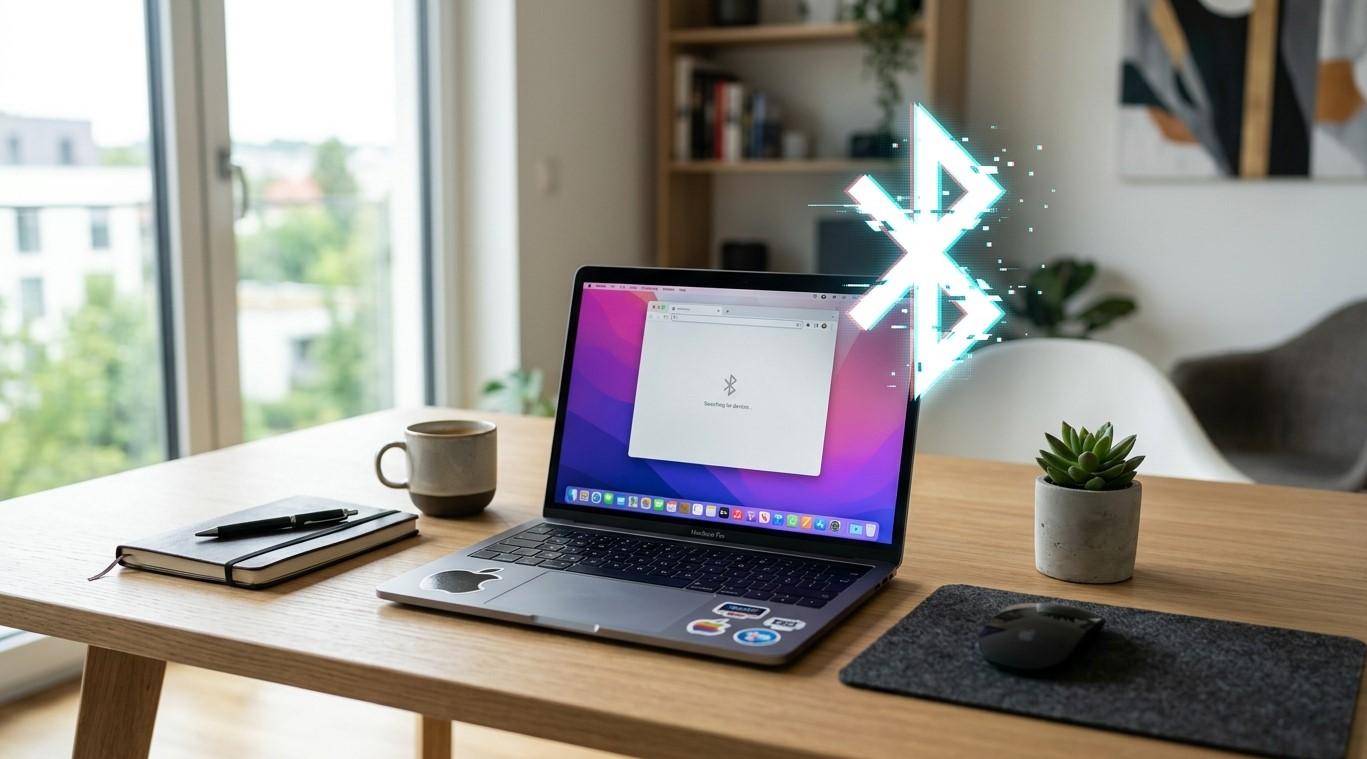
Bluetooth makes it easy to connect wireless headphones, keyboards, mice, speakers, printers, and other accessories to a laptop without dealing with cables. However, a Bluetooth connection that randomly disconnects can quickly become frustrating, especially when it happens during work, meetings, gaming, or entertainment. The cause may be a weak signal, outdated drivers, power-saving settings, interference, or a problem with the Bluetooth device itself.
If your laptop repeatedly loses its Bluetooth connection, there are several troubleshooting steps you can try before seeking professional help. When the problem continues despite basic troubleshooting, computer repair Albany, laptop repair Albany, and computer repair Albany NY professionals can help identify whether the issue is caused by software, drivers, or hardware.
Determine When the Bluetooth Connection Drops
Before changing settings, pay attention to when the disconnection occurs.
Does Bluetooth disconnect:
- After the laptop goes to sleep?
- When the battery level becomes low?
- When you move farther away from the device?
- When multiple wireless devices are connected?
- During video calls or streaming?
- Immediately after starting the laptop?
Identifying a pattern can provide an important clue. For example, if Bluetooth works normally when the laptop is plugged in but disconnects frequently on battery power, power-management settings may be involved.
Check the Bluetooth Device Itself
The problem may not always be the laptop.
Test the Bluetooth accessory with another compatible computer, tablet, or phone if possible. If the device repeatedly disconnects from multiple systems, the accessory may have a battery, hardware, or firmware problem.
For battery-powered accessories such as wireless mice, keyboards, and headphones, check the battery level. A weak battery can cause intermittent connections before the device stops working completely.
Recharge or replace the battery and test the connection again.
Move the Device Closer to the Laptop
Bluetooth is designed for short-range wireless communication. Physical distance and obstacles can affect connection stability.
Move the Bluetooth accessory closer to your laptop and see whether the connection becomes more reliable.
Large objects, walls, metal surfaces, and certain electronic devices can interfere with wireless signals. If the device works properly when it is close to the laptop but disconnects at longer distances, signal strength or interference may be contributing to the problem.
Restart Bluetooth
A temporary Bluetooth service or driver problem can sometimes be resolved by turning Bluetooth off and back on.
Open your laptop's Bluetooth settings and disable Bluetooth. Wait several seconds before enabling it again.
You can also restart the laptop and the Bluetooth accessory.
Restarting both devices gives the operating system and wireless hardware a chance to establish a fresh connection.
Remove and Re-Pair the Bluetooth Device
A corrupted or incomplete pairing configuration can cause repeated disconnections.
Open your laptop's Bluetooth settings and remove the affected device from the list of paired devices. Then place the accessory into pairing mode and connect it again.
This creates a new Bluetooth connection profile and can resolve problems caused by corrupted pairing information.
Before removing the device, make sure you know how to place it back into pairing mode.
Update Your Bluetooth Driver
Bluetooth drivers allow the operating system to communicate with the laptop's wireless hardware.
An outdated, damaged, or incompatible driver can result in:
- Random disconnections
- Bluetooth devices not appearing
- Pairing failures
- Delayed connections
- Bluetooth disappearing from system settings
Open Device Manager and locate the Bluetooth section. Check whether the Bluetooth adapter has any warning indicators.
If a driver update is available from your laptop manufacturer or operating system provider, install the appropriate version.
Avoid downloading drivers from unknown third-party websites. Incorrect drivers can create additional hardware or compatibility problems.
Check Power Management Settings
Power-saving features can sometimes interfere with wireless devices.
Some laptops are configured to reduce power consumption by allowing the operating system to turn off certain hardware when it is not actively needed.
If Bluetooth disconnects primarily when the laptop is idle, sleeping, or running on battery power, check the relevant power-management settings.
The exact options vary depending on the laptop manufacturer and Windows version. If you are unsure about changing advanced power settings, a professional laptop repair Albany technician can inspect the configuration safely.
Install Windows Updates
Operating system updates may include Bluetooth compatibility improvements, driver fixes, and security updates.
Open Windows Update and check whether updates are available.
If the Bluetooth problem began after a recent system update, it may be related to a driver or compatibility change. In that situation, checking for subsequent updates or consulting the laptop manufacturer's support information may help.
Do not repeatedly install unofficial driver packages simply because they claim to fix Bluetooth problems.
Look for Wireless Interference
Bluetooth operates in the same general radio-frequency range as some other wireless technologies, including Wi-Fi.
Heavy wireless activity, nearby devices, and crowded wireless environments can sometimes contribute to connection instability.
Try disconnecting unnecessary wireless accessories and testing the Bluetooth device again.
If you are using multiple wireless devices at the same time, temporarily reduce the number of connected accessories to see whether Bluetooth becomes more stable.
Check for Physical Hardware Problems
If software troubleshooting does not solve the issue, the laptop's Bluetooth hardware may need attention.
Depending on the laptop design, Bluetooth functionality may be integrated into the wireless network adapter or motherboard.
Hardware-related problems may occur after:
- Physical impact
- Liquid exposure
- Internal component damage
- Hardware upgrades
- Loose internal connections
- Aging wireless components
If Bluetooth consistently fails even after reinstalling drivers and testing different accessories, professional diagnostics may be necessary.
Avoid opening the laptop yourself unless you have the appropriate technical knowledge and tools.
Test Multiple Bluetooth Devices
Testing different accessories can help determine where the problem is located.
For example, if a wireless mouse, keyboard, and headphones all disconnect from the same laptop, the laptop's Bluetooth system is more likely to be involved.
If only one specific accessory disconnects while other Bluetooth devices work normally, the accessory may be the source of the problem.
This simple comparison can save time and help a technician diagnose the issue more efficiently.
When to Contact a Professional Repair Service
Persistent Bluetooth problems can sometimes indicate a deeper software or hardware issue.
Consider professional assistance if:
- Bluetooth disappears from Windows entirely
- Multiple Bluetooth devices disconnect repeatedly
- Driver installation fails
- The Bluetooth adapter shows an error
- The problem began after physical damage
- Bluetooth stops working after hardware repairs
- Wireless connections remain unstable after troubleshooting
Experienced computer repair Albany technicians can perform a complete diagnostic evaluation to determine whether the issue involves drivers, Windows settings, wireless hardware, or another component.
For more complicated laptop-specific problems, computer repair Albany NY professionals can inspect the system and recommend an appropriate repair or replacement solution.
Conclusion
A laptop that randomly loses its Bluetooth connection can be caused by many factors, including weak batteries, wireless interference, outdated drivers, power-management settings, corrupted pairing information, software conflicts, or hardware problems.
Start with simple solutions such as checking the accessory's battery, moving it closer to the laptop, restarting Bluetooth, removing and re-pairing the device, and installing appropriate driver or operating system updates. If multiple Bluetooth devices continue disconnecting, the problem may be deeper than a single accessory.
When troubleshooting does not resolve the issue, professional computer repair Albany, laptop repair Albany, and computer repair Albany NY services can help diagnose the cause and restore reliable wireless connectivity. Proper diagnosis is especially important when the problem involves internal hardware, because attempting unnecessary repairs can create additional complications.

 English
 Arabic
 French
 Spanish
 Portuguese
 Deutsch
 Turkish
 Italiano
 Russian
 Romaian
 Portuguese (Brazil)
 Greek
Greek
