


Why Is My Phone’s Proximity Sensor Turning the Screen Off Unexpectedly?
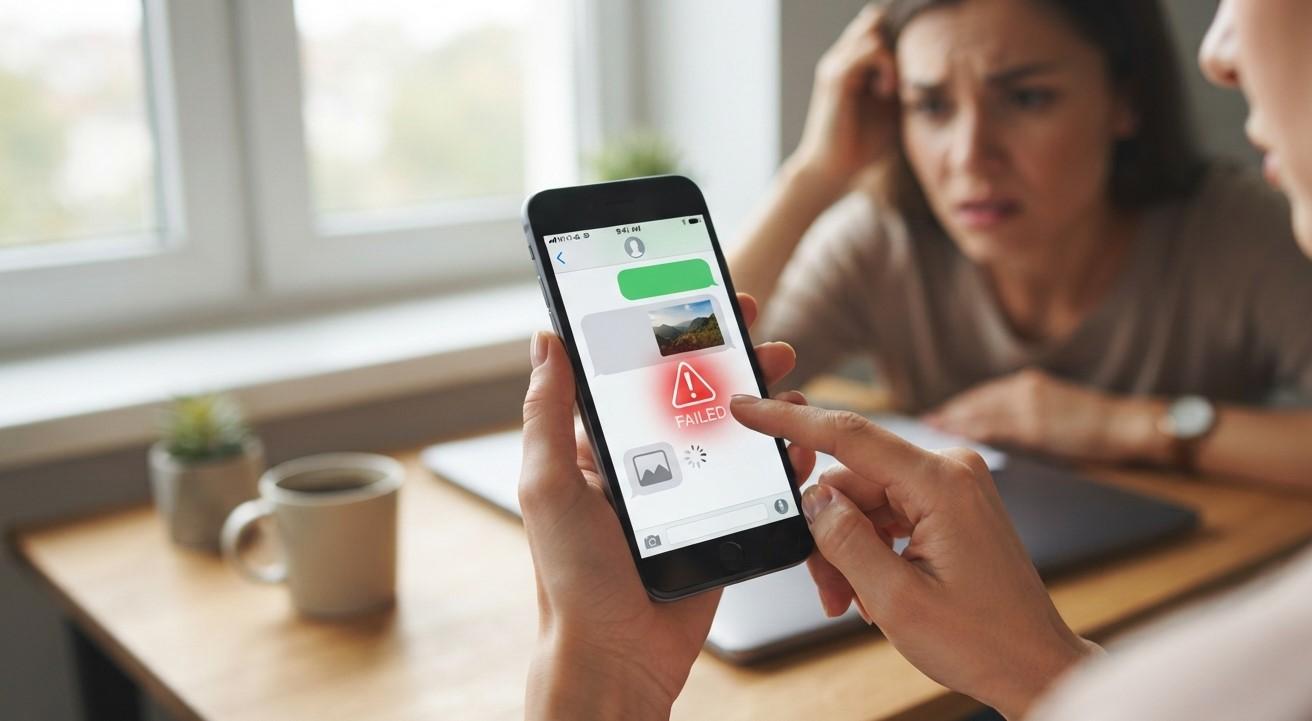
Have you ever been using your phone and noticed that the screen suddenly turns off even though you are not intentionally touching the proximity sensor? This can be frustrating, particularly when the screen stays dark during a call or repeatedly turns off while you are using the phone. In many cases, the proximity sensor is simply detecting something close to the top of the device, but software problems, screen protectors, dirt, or hardware damage can also cause unexpected behavior.
Mobile Device Techs helps smartphone users troubleshoot and resolve a wide range of device problems. Whether you are looking for Cell Phone Repair in Douglasville, GA, Samsung Tablet Repair in Douglasville, GA, Samsung Phone Repair Douglasville, GA, or iPhone repair in Douglasville, GA, understanding why your proximity sensor is behaving incorrectly can help you determine whether you need simple troubleshooting or professional service.
The proximity sensor is a small but important component found near the top of many smartphones. It detects nearby objects, such as your face, and allows the phone to turn the display off when you hold the device against your ear during a call. However, when the sensor becomes obstructed or receives incorrect information, it may turn the screen off when you do not expect it.
This guide explains the common causes of unexpected screen shutdowns and the steps you can take to troubleshoot the problem.
What Does a Proximity Sensor Do?
A proximity sensor detects when an object is close to the front of your smartphone. During a phone call, for example, bringing the phone close to your face causes the sensor to detect your skin and turn the display off.
This serves several purposes. It prevents your cheek or ear from accidentally pressing buttons on the touchscreen, helps prevent accidental hang-ups or muted calls, and reduces unnecessary battery usage while you are talking.
Normally, the screen should turn back on when you move the phone away from your face. If the display remains off or turns off when nothing is near the sensor, something may be interfering with the sensor or its software.
1. A Screen Protector May Be Blocking the Sensor
One of the most common causes of unexpected proximity-sensor behavior is a screen protector that is incorrectly installed.
Many modern phones have sensors positioned close to the front camera, earpiece, or top edge of the display. If a screen protector covers the sensor area, contains air bubbles, or is slightly misaligned, the phone may incorrectly detect an object nearby.
This can cause the screen to turn off even when you are holding the phone away from your face.
What to do
Inspect the top portion of your display carefully. Look for:
- A poorly aligned screen protector
- Air bubbles near the sensor
- Dirt trapped underneath the protector
- Cracks around the sensor area
- A protector that covers the earpiece or sensor opening
If you recently installed a new screen protector and the problem began afterward, the protector could be responsible.
2. Clean the Top of Your Phone
Dust, fingerprints, oils, and debris can accumulate around the earpiece and sensor area.
Because proximity sensors are small, even minor buildup can sometimes interfere with their operation. Gently clean the top portion of the phone using a soft, dry microfiber cloth.
Do not insert sharp objects into the earpiece or sensor openings. Avoid using excessive liquid, as moisture can create additional problems.
After cleaning the phone, make a test call and see whether the display behaves normally.
3. Your Phone Case May Be Interfering
A phone case can also interfere with sensors if it does not fit correctly.
Some cases have raised edges or openings that do not line up perfectly with the phone's sensors. If the case overlaps the top portion of the display, it may partially obstruct the proximity sensor.
Remove the case temporarily and use the phone without it. If the screen no longer turns off unexpectedly, inspect the case for alignment problems.
Replacing the case with a properly designed model may resolve the issue.
4. Restart Your Smartphone
Temporary software glitches can affect how sensors operate.
If the proximity sensor suddenly starts behaving differently, restart your phone before trying more complicated troubleshooting methods.
A restart refreshes system processes and can clear temporary errors affecting the display, sensors, and calling functions.
After restarting, make a test call and move the phone toward and away from your face. Watch whether the screen turns off and comes back on at the appropriate times.
If the problem disappears after restarting but returns later, a software or application-related issue may be involved.
5. Check Whether the Problem Happens During Calls
The proximity sensor is primarily associated with call-related screen behavior, so determine when the problem occurs.
Does the screen turn off unexpectedly only during phone calls? Or does the display also become unresponsive when you are using other applications?
If the problem occurs only during calls, the issue may be related to the phone's calling software, proximity sensor configuration, or the sensor itself.
If the screen turns off during general smartphone use, another issue involving the display, power settings, touch system, or software may be responsible.
Identifying when the problem occurs can make troubleshooting much easier.
6. Check for Software Updates
Outdated software can sometimes cause unexpected behavior involving sensors and display functions.
Manufacturers regularly release system updates that can address bugs, improve compatibility, and fix problems affecting device functions.
Open your phone's software-update settings and check whether an update is available.
Before installing an update, make sure your battery has sufficient charge and that important data is backed up.
Once the update is complete, restart the phone and test the proximity sensor again.
7. Disable Recently Installed or Problematic Apps
A newly installed application can occasionally interfere with normal smartphone behavior.
If the proximity problem began shortly after installing an app, consider whether that application could be related to calling, screen control, accessibility, battery management, or device customization.
Some applications may modify how the screen behaves or operate in the background.
Try uninstalling a recently installed suspicious application and then test the phone again. If the problem disappears, the app may have contributed to the issue.
8. Check Accessibility and Display Settings
Some smartphones include accessibility features and display settings that can affect screen behavior.
Review settings related to:
- Screen timeout
- Accessibility services
- Touch controls
- Accidental touch protection
- Call settings
- Gesture controls
- Display behavior
The exact settings differ between Android phones and iPhones, so use your device's settings menu to identify options related to calls and display behavior.
Changing settings one at a time makes it easier to determine whether a particular option is causing the problem.
9. Test the Phone Without Accessories
If you use a screen protector, case, magnetic accessory, or other attachment, temporarily remove it and test the phone.
Accessories are often overlooked because they may appear unrelated to sensor performance. However, even a small obstruction near the top of the device can affect how the proximity sensor detects nearby objects.
Testing the phone without accessories is a simple way to eliminate external causes.
If the phone works normally without the accessories, reinstall them one at a time to identify which item is causing the problem.
10. Physical or Water Damage Can Affect the Sensor
If your phone has recently been dropped or exposed to liquid, the proximity sensor may have suffered physical damage.
A strong impact can affect internal components, connectors, or the display assembly. Moisture can also interfere with electronic components and cause unpredictable sensor behavior.
In these situations, software troubleshooting may not permanently resolve the problem.
If the issue began immediately after a drop, liquid exposure, screen replacement, or other physical event, professional inspection is recommended.
11. A Recent Screen Replacement Could Be the Cause
If your phone recently had its screen replaced, pay particular attention to the proximity sensor.
The sensor may need to be positioned correctly during repair. Depending on the device, components near the display assembly can also affect sensor operation.
If the unexpected screen-off problem began after a screen repair, return to a qualified repair technician and explain exactly when the problem started.
A professional can inspect the display assembly, sensor alignment, connectors, and other related components.
12. The Proximity Sensor Itself May Be Faulty
Sometimes the sensor has simply developed a hardware fault.
A failing sensor may incorrectly report that an object is close to the phone. As a result, the device may repeatedly turn the display off even when you are holding it away from your face.
Signs of a possible hardware problem include:
- The screen repeatedly turns off during calls.
- The display does not wake when you move the phone away.
- The problem continues after removing the case and screen protector.
- Cleaning does not make a difference.
- Restarting the phone does not help.
- The problem began after physical damage.
- The issue started after a screen replacement.
When these symptoms persist, professional diagnostics can determine whether the sensor or another internal component needs attention.
How to Prevent Proximity Sensor Problems
You can take several steps to reduce the likelihood of future sensor problems.
Keep the top portion of your phone clean and avoid allowing dust or debris to accumulate around the earpiece. Choose a high-quality screen protector designed specifically for your phone model and make sure it is installed correctly.
Use a case that provides accurate openings around the phone's sensors, camera, and earpiece. Avoid exposing your device to unnecessary moisture and protect it from drops and impacts.
Keeping your operating system updated can also help prevent software-related problems.
If your phone begins behaving unusually after a repair or accessory installation, address the issue promptly rather than assuming it will resolve itself.
When Should You Seek Professional Phone Repair?
If the proximity sensor continues turning the screen off unexpectedly after basic troubleshooting, professional repair may be the most appropriate next step.
A technician can examine the sensor and related components to determine whether the problem is caused by software, obstruction, incorrect installation, or hardware damage.
Professional assistance is especially useful when the phone has experienced a drop, water exposure, screen replacement, or another repair shortly before the issue appeared.
Trying to disassemble the phone without the proper tools and experience can create additional damage, particularly around the display and sensor assembly.
Final Thoughts
A phone that turns its screen off unexpectedly can be frustrating, but the problem does not always mean that the device needs major repair. A blocked proximity sensor, poorly fitted screen protector, phone case, dirt, software glitch, or incorrect setting may be responsible.
Start with simple solutions such as cleaning the sensor area, removing accessories, restarting the phone, checking software updates, and reviewing relevant settings. If the problem continues, especially after physical damage or a recent screen replacement, professional diagnosis can help identify the underlying cause.
For reliable smartphone assistance, Mobile Device Techs can help customers seeking Cell Phone Repair in Douglasville, GA, Samsung Tablet Repair in Douglasville, GA, Samsung Phone Repair Douglasville, GA, and iPhone repair in Douglasville, GA. Proper troubleshooting and professional repair can help restore normal screen behavior and keep your smartphone functioning reliably.

 English
 Arabic
 French
 Portuguese
 Deutsch
 Turkish
 Dutch
Dutch
 Italiano
 Russian
 Romaian
 Portuguese (Brazil)
 Greek
Greek
