


Stretched, Zoomed, or Cropped Picture on IPTV? How to Fix It Fast
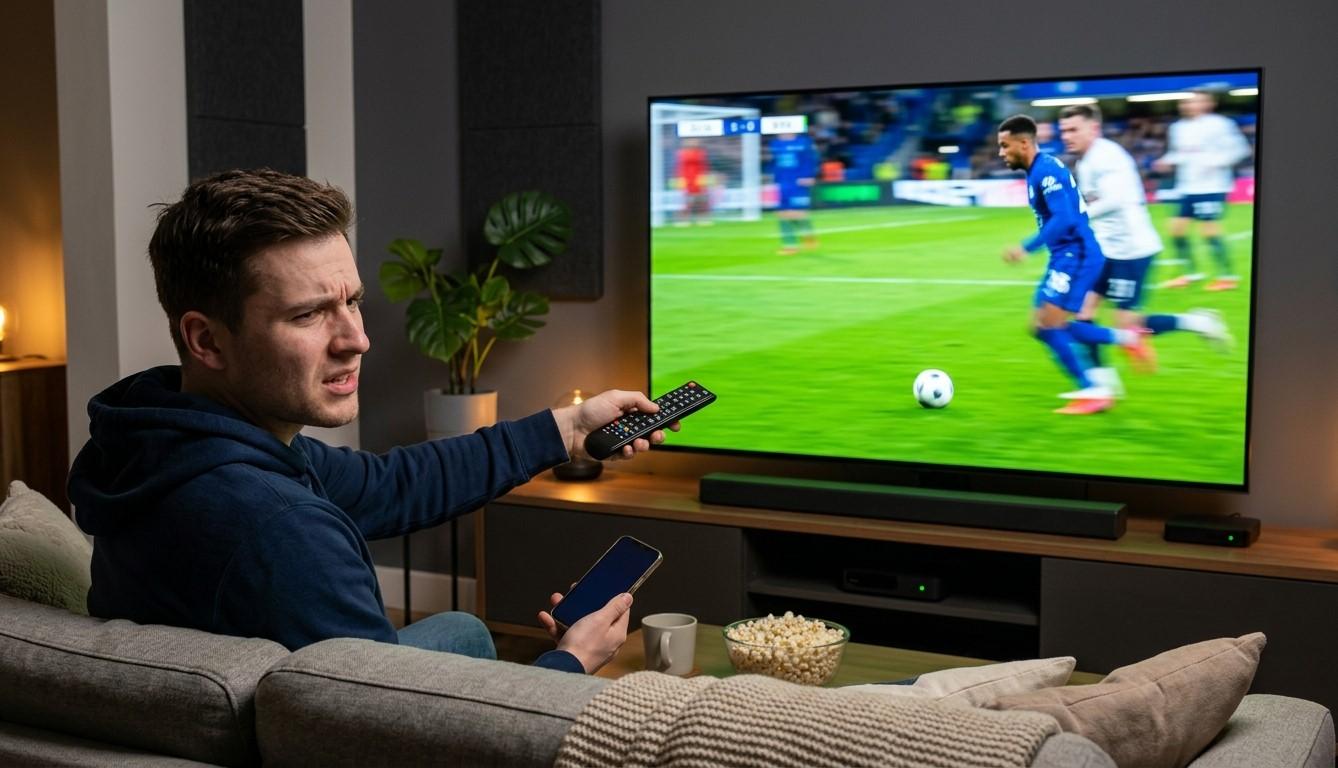
A picture that looks wrong is hard to ignore. Maybe everyone on screen looks wider than they should, the channel logo is cut off, or thick black bars frame the image. The good news is that this is almost never a problem with your subscription. It's a display setting that's out of step somewhere between the channel, your app, your streaming device, and your TV. This guide helps you match what you see to the likely cause, so your IPTV India channels look right on your Indian IPTV Box or any other device.
Table of Contents
- Quick Diagnosis: What Are You Seeing?
- Symptom 1: People Look Too Wide or Too Thin
- Symptom 2: The Edges of the Screen Are Cut Off
- Symptom 3: Black Bars Around the Picture
- Symptom 4: The Picture Doesn't Fill the Screen
- Fixing It in Your IPTV App and Streaming Device
- Fixing It on Your TV
- How to Keep It from Coming Back
- FAQs
Quick Diagnosis: What Are You Seeing?
Two things decide how a picture looks on your screen: the shape of the video and the shape of your display. Modern TVs are widescreen (16:9), while older programming and some channels use a squarer 4:3 shape. When the two don't match, something has to stretch, crop, or add black bars.
Use this table to narrow it down:
| What you see | Most likely cause | Where to fix it |
|---|---|---|
| Faces look wide and squashed | A 4:3 picture stretched to fill a widescreen TV | TV picture size or app aspect ratio |
| Faces look tall and thin | A widescreen picture squeezed into a squarer shape | TV picture size or device output |
| Logos, subtitles, or menu text cut off | Overscan or zoom mode | TV picture settings |
| Black bars on the sides | 4:3 content on a widescreen TV | Usually normal |
| Black bars on top and bottom | Wide cinema-style film | Usually normal |
| Picture too small or too big overall | Device screen size or resolution mismatch | Streaming device display settings |
| Only one channel looks wrong | A problem with that channel's feed | Not your setup |
A quick test helps here. Flip through several channels. If every channel looks wrong, the cause is on your side. If only one looks wrong, the source is probably responsible.
Symptom 1: People Look Too Wide or Too Thin
This is the classic stretched picture. It usually happens in one of two ways:
- A 4:3 channel is being pulled sideways to fill a widescreen TV, so everyone looks wider
- Widescreen video is being squeezed into the wrong shape, so everyone looks thinner
What to try:
- Set your TV's picture size to 16:9, Auto, or Original, and avoid modes named Stretch, Full, or Wide Zoom
- In your IPTV app, set the picture mode to Fit or Original instead of Stretch or Fill
- If only 4:3 channels look odd, accept the black bars on the sides. That's the correct way to show them
Symptom 2: The Edges of the Screen Are Cut Off
If channel logos vanish, subtitles run off the bottom, or menu text is clipped, the picture is being enlarged slightly and the outer edges are being lost. Two settings usually cause this:
- Overscan – An old feature that zooms the picture in a little to hide signal edges. It isn't needed for modern digital sources
- Zoom or Cinema mode – A picture size option that enlarges the image to remove black bars, cropping the top and bottom in the process
What to try:
- Look in your TV's picture settings for Just Scan, Screen Fit, Full Pixel, or Overscan (off)
- Avoid Zoom or Cinema modes for regular TV viewing
- If your streaming device has a screen size or overscan adjustment, use it to shrink the picture until the edges are visible again
The names of these settings vary by brand and model, so if you can't find them, check your TV's manual or search the picture menu for anything relating to size, scan, or aspect.
Symptom 3: Black Bars Around the Picture
Many people assume black bars mean something is broken, but they're usually the correct way to show content whose shape differs from your screen:
- Bars on the left and right (pillarbox) – Appear when a 4:3 picture is shown on a widescreen TV
- Bars on top and bottom (letterbox) – Appear when a very wide film is shown on a standard widescreen TV
- Bars on all four sides (windowbox) – Can happen when both shapes are mismatched or when a small-resolution stream is shown inside a larger frame
These bars protect the picture from being distorted or cropped. Removing them means stretching or zooming, and both change the image. If you'd rather not see the bars, a mild zoom option can be acceptable for movies, but expect some cropping.
If the bars look far bigger than they should, check that your streaming device's output resolution is set to Auto or to your TV's native resolution.
Symptom 4: The Picture Doesn't Fill the Screen
If the whole picture, including menus, seems shrunken with a border all the way around, or it looks oversized and off-center, the cause is often a mismatch between your device and your TV:
- Display resolution set too low or too high for your TV
- A screen calibration setting on your streaming device that was changed accidentally or reset after an update
- Different settings per HDMI input on your TV, so one port behaves differently from another
- A cable or connection issue, which is less common but worth checking if the picture behaves oddly
What to try: On your Indian IPTV Box, open the display or screen settings and set the resolution to Auto or the highest resolution your TV supports. If your device offers a screen size adjustment, use it to make the picture fit the edges properly. Then try a different HDMI port on the TV.
Fixing It in Your IPTV App and Streaming Device
Your app and device can override your TV, so check them early:
- Open a live channel and bring up the playback menu, often shown as a gear or aspect ratio icon
- Look for a picture or aspect ratio option with choices such as Fit, Fill, Stretch, Zoom, 16:9, 4:3, or Original
- Choose Fit or Original as your starting point
- Open your streaming device's display settings and set the output resolution to Auto or your TV's native resolution
- Find the screen size or calibration option, if available, and adjust until the picture fills the screen without losing the edges
- Restart the app after making changes, since some settings only apply after a fresh launch
- Update the app and device firmware, because bugs in older versions can produce display glitches
Some apps remember a different setting for each channel. If one channel keeps reverting, check whether the app has a per-channel or default option.
Fixing It on Your TV
Your TV has the final say over how the picture is shown:
- Press the settings or picture button on your remote and find the picture size or aspect ratio menu
- Choose 16:9, Auto, or Original for regular viewing
- Turn off overscan using Just Scan, Screen Fit, or a similar option
- Check that you're adjusting the correct input, because many TVs save picture settings separately for each HDMI port
- Turn off any Zoom, Cinema, or Stretch modes that don't suit the content you're watching
- Reset the picture settings to default if you've changed many options and can't tell what's causing the problem, then adjust one thing at a time
If another device on the same TV looks fine, your TV settings are probably not the issue, and you should focus on your IPTV device or app.
How to Keep It from Coming Back
- Set one reliable combination and leave it: TV on 16:9 or Auto, app on Fit or Original, device output on Auto
- Avoid changing several settings at once, so you always know which one caused a change
- Check display settings after big updates to the TV, device, or app, since updates can reset them
- Use the same HDMI port for your streaming device rather than swapping ports
- Keep firmware current, since display bugs are often fixed in updates
- Note your working settings somewhere, so you can restore them quickly after a reset
FAQs
1. Why do people look wider than normal on some channels?
Those channels are likely broadcast in 4:3 and your TV or app is stretching them to fill a widescreen display. Set the picture mode to Fit, Original, or Auto to restore the correct proportions.
2. Are black bars a sign that something is wrong?
Usually not. They show that the video's shape differs from your screen's shape and are the correct way to avoid stretching or cropping.
3. What is overscan and should I turn it off?
Overscan zooms the picture slightly and hides the outer edges. It's unnecessary for most modern digital sources, so turning it off (often called Just Scan or Screen Fit) usually shows the full picture.
4. My picture is fine on other devices but wrong on my Indian IPTV Box. Why?
The problem is likely in the box's display settings or the app's aspect ratio option. Check the output resolution, any screen size adjustment, and the picture mode inside the app.
5. Could my internet connection cause a stretched or cropped picture?
No. Internet problems cause buffering and lower quality, not a change in picture shape. Stretching and cropping come from display and aspect ratio settings.
Get Your Picture Looking Right Again
A few quick setting changes are usually all it takes to fix a stretched or cropped picture. Pair a dependable IPTV India subscription with a well-configured Indian IPTV Box and enjoy a clear, properly proportioned picture on every channel. Explore our IPTV plans today and watch your favorite shows exactly the way they should look.

 English
 Arabic
 French
 Spanish
 Portuguese
 Deutsch
 Dutch
Dutch
 Italiano
 Russian
 Romaian
 Portuguese (Brazil)
 Greek
Greek
