


Computer Sense: Why Renting a Cloud PC Is an Alternative to Buying a Gaming Computer
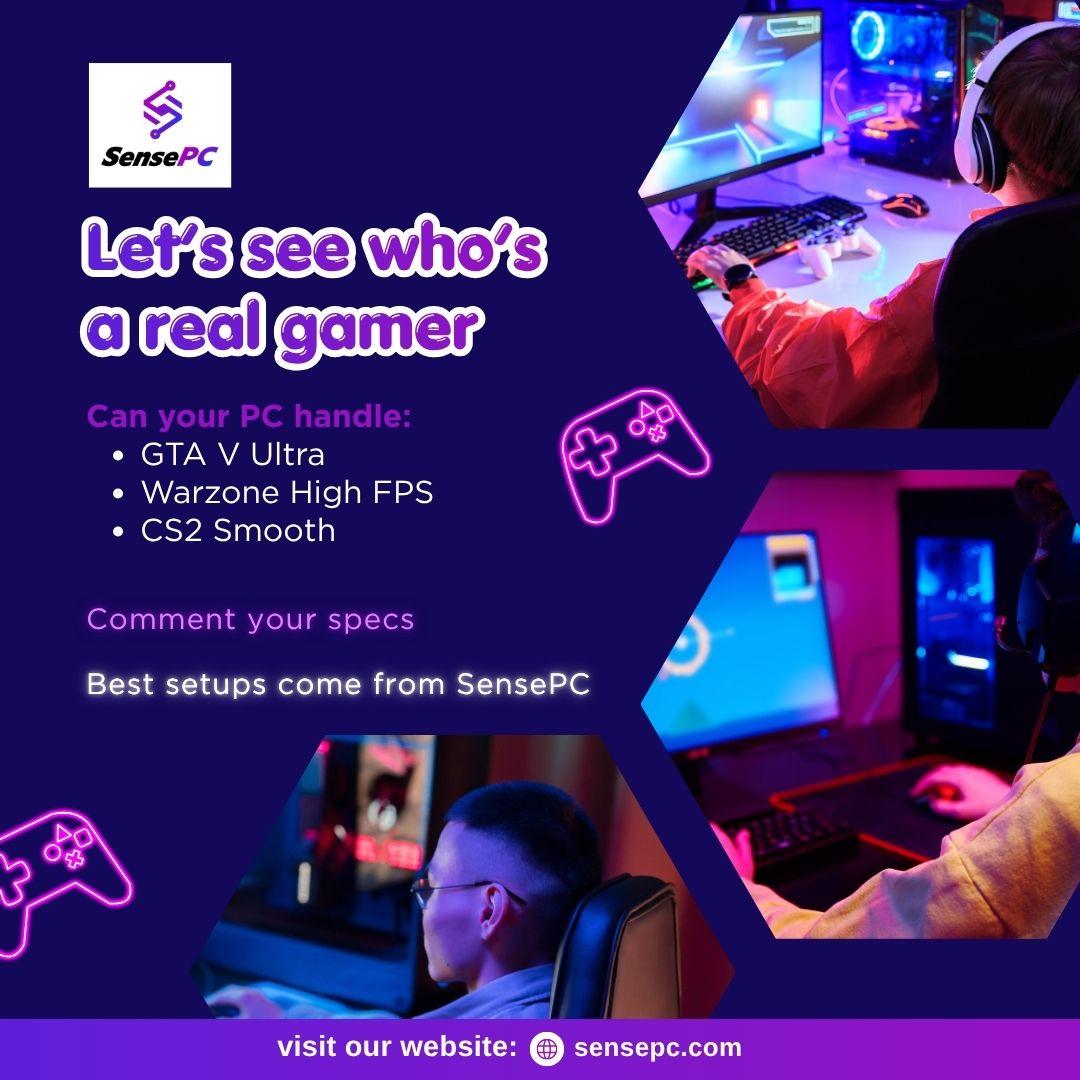
Choosing the right computer can be challenging when modern games demand increasingly capable hardware. A powerful graphics card, sufficient memory, and fast storage can make a gaming desktop expensive, especially for people who only need additional performance occasionally.
A practical approach is to use a little computer sense: identify the performance you need, compare the cost of ownership with the cost of renting, and choose a solution that fits your habits. For some users, the answer may be a virtual machine for gaming rather than a traditional desktop.
Cloud computing makes this possible by providing access to remote computers over the internet. With a suitable configuration, gamers can run compatible PC games on remote hardware and stream gameplay to a supported local device.
What Does It Mean to Rent a Cloud PC?
When you rent a cloud PC, you pay to access a computer hosted in a data center rather than purchasing the physical machine. Depending on the provider, that computer may offer Windows, CPU resources, RAM, SSD storage, and a GPU for demanding applications.
For gaming, the remote computer runs the game while streaming its output to your device. Your keyboard, mouse, and controller inputs are transmitted to the remote system.
This arrangement can be useful for gamers who own a basic laptop, an older desktop, or a Mac that cannot run certain Windows games locally.
Unlike some cloud gaming services that restrict users to a fixed catalog, a full virtual gaming PC may let users install compatible launchers and games they already own. Availability depends on the provider's policies and individual game requirements.
Benefits of Renting a Cloud PC for Gaming
Avoid a Large Upfront Purchase
A traditional gaming desktop requires an initial investment in hardware. Renting a cloud PC gives you access to remote computing resources without buying the graphics card, processor, and other components yourself.
This can be appealing if you want to test demanding games before upgrading your computer.
Access More Powerful Hardware
A suitable cloud gaming configuration can provide GPU resources beyond those available on your local device. This allows compatible laptops and other supported computers to act as access points to a more powerful remote environment.
Actual gaming performance depends on the selected hardware, software compatibility, server region, and network quality.
Pay According to Your Usage
Some cloud PC providers offer hourly, daily, and monthly plans. Hourly access may suit occasional gaming, while longer plans can be more convenient for people who play regularly.
Compare the complete cost, including persistent storage, minimum billing periods, runtime limits, and renewal terms. Renting can reduce upfront spending, but frequent use may make owning a physical computer more economical over time.
Keep a Consistent Gaming Environment
A cloud PC with persistent storage can retain installed games, settings, and files between sessions. This can save time when you return to the same remote desktop.
Check whether the provider preserves your data when the computer is stopped and whether storage incurs separate charges.
How to Choose a Virtual Machine for Gaming
Not every virtual machine is designed to run modern PC games. A general-purpose cloud server may lack the graphics hardware, drivers, or interactive streaming features required for a satisfactory experience.
Before renting, evaluate these essential factors:
-
GPU capability: Check the graphics hardware against the requirements of your preferred games.
-
CPU and RAM: Ensure the configuration provides sufficient processing power and memory.
-
Storage: Consider the space required for games, updates, and other applications.
-
Latency: Select a practical server region and test your connection.
-
Game compatibility: Check launcher requirements and possible anti-cheat restrictions.
-
Billing: Understand the full cost of computing time and persistent storage.
-
Connection method: Compare browser access with any supported native desktop client.
A little research before signing up can prevent unnecessary spending and help you choose a configuration that matches your real needs.
SensePC: A Cloud PC for Gaming and Remote Computing
SensePC offers a cloud-hosted Windows environment for users who want access to a remote gaming computer without purchasing a high-performance physical desktop.
Its Xtreme gaming configurations use NVIDIA L4 graphics resources. Steam and Epic Games Launcher are ready on Xtreme plans, allowing users to sign in to their own accounts and install compatible games.
SensePC also offers features that can be useful when renting a cloud PC:
-
Flexible billing: Choose Hourly, Daily, or Monthly access.
-
Persistent SSD storage: Keep installed games, settings, and files between sessions.
-
Remote Windows desktop: Run compatible games and applications in a cloud-hosted environment.
-
Browser access: Connect through a supported browser.
-
Performance Mode: Use the native Amazon DCV client on supported Windows and macOS computers for the recommended gaming connection experience.
For occasional gamers, virtual gaming computer hourly access can be a way to test a cloud gaming PC before committing to a longer billing period. Users should account for ongoing storage charges and check the latest configuration prices before starting.
Explore the available options at https://sensepc.com/use-cases/gaming.
Cloud PC vs. Buying a Gaming Desktop
Which option makes more sense depends on how you use your computer.
A traditional desktop offers direct hardware access, local processing, and the ability to play compatible games offline. It may be a better investment for people who game frequently over several years.
A cloud PC avoids the need to buy and maintain powerful local hardware. It can suit occasional gamers, people who use lightweight devices, and users who need additional performance for specific sessions.
However, cloud gaming requires a reliable internet connection. Network latency can affect responsiveness, and not every game works in a virtualized environment.
The smartest choice is to compare total costs over your expected period of use rather than focusing only on the initial price.
How to Get Started
If you want to rent a cloud PC for gaming, follow these steps:
-
Identify the games you want to play and check their recommended hardware requirements.
-
Select a cloud PC configuration that meets those requirements.
-
Choose the closest suitable server region available.
-
Review billing terms, storage costs, and runtime allowances.
-
Connect to the remote desktop and install compatible games.
-
Test performance and connection stability before extending your rental.
Starting with a short session can help you determine whether the experience meets your expectations.
Final Thoughts
Using computer sense means choosing technology based on your actual needs, not simply buying the most powerful hardware available. Renting a cloud PC can provide flexible access to a gaming-capable computer without the upfront cost of a dedicated desktop.
When comparing virtual machines for gaming, prioritize GPU performance, compatibility, latency, persistent storage, and transparent pricing. SensePC is one option to investigate if you want a Windows-based cloud gaming PC with flexible access plans.
By evaluating your gaming habits and testing a suitable configuration, you can decide whether cloud PC rental is the right alternative for you.

 English
 Arabic
 French
 Spanish
 Portuguese
 Deutsch
 Turkish
 Dutch
Dutch
 Italiano
 Russian
 Romaian
 Portuguese (Brazil)
