


How can a TCL TV Service Center diagnose a television that displays picture artifacts during high-resolution playback?
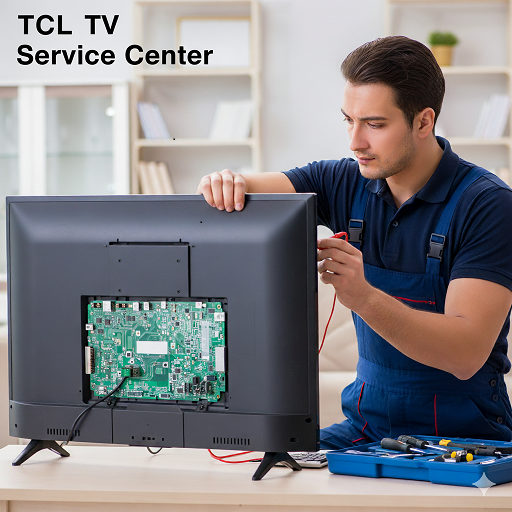
Introduction
High-resolution playback is designed to deliver clear details, smooth movement, and accurate colours. However, some TCL televisions may develop picture artifacts while displaying 4K movies, high-definition broadcasts, gaming content, or videos from streaming platforms. These artifacts can appear as coloured blocks, flickering lines, distorted edges, pixelation, brief flashes, unusual patterns, or patches of incorrect colour. Such issues can make an otherwise sharp picture difficult to watch and may indicate a problem with the video source, connection, settings, software, or internal television components.
When these symptoms occur, identifying the conditions under which they appear is an important first step. For example, artifacts that occur only during 4K streaming may have a different cause from distortions that remain visible across every input. A systematic diagnosis helps narrow down the possibilities without replacing components unnecessarily.
Customers looking for assistance with these symptoms can explore the TCL TV Service Center in Varanasi to learn about service support for television picture problems. Understanding the possible causes can also help owners explain the issue clearly when arranging an inspection.
What Are Picture Artifacts During High-Resolution Playback?
Picture artifacts are unwanted visual abnormalities that appear when a television processes or displays video. They can affect a small part of the screen or interrupt the entire image. Their appearance, duration, and frequency provide useful clues about the underlying issue.
Common examples include:
-
Pixelation: The picture breaks into visible blocks, particularly during detailed scenes or fast movement.
-
Colour distortion: Certain areas display unexpected colours, colour bands, or patches that do not match the original image.
-
Horizontal or vertical lines: Lines appear temporarily or remain visible across the display.
-
Flickering: Parts of the picture flash, shimmer, or change brightness unexpectedly.
-
Compression artifacts: Fine details appear smeared, blocky, or uneven because the video stream does not contain sufficient visual information.
-
Image tearing: Different portions of the picture appear out of alignment, especially during gaming or rapidly changing scenes.
-
Mosaic patterns: Large sections of the image break into squares or irregular shapes.
Not every artifact indicates a hardware fault. Streaming interruptions, unsuitable video settings, incompatible signal formats, and damaged cables can produce similar symptoms. Diagnosis should therefore begin with simple external checks before moving towards internal components.
Can the Video Source Cause Artifacts on a TCL Television?
The original video source is one of the first things to investigate. A TCL television may display artifacts because the incoming content is already damaged, poorly encoded, or transmitted inconsistently.
For streaming services, the video quality depends on internet stability, available bandwidth, and the platform's encoding process. When a connection becomes unstable, a streaming application may lower picture quality or struggle to deliver frames smoothly. Compression can become especially noticeable in dark scenes, detailed backgrounds, and fast-moving sequences.
To check whether the source is responsible, play a different video using the same application. Then compare it with content from another application, a connected media player, or a locally stored video file supported by the television. If the problem appears only with one video or service, the source is more likely to be responsible than the display hardware.
Broadcast television can also show artifacts when reception is weak or the signal is disrupted. Inspect the antenna or cable connection and check whether other channels show similar problems. If the distortion affects only one channel, the issue may be related to the broadcast signal rather than the television itself.
For a more reliable comparison, use content with a known good picture quality. This helps establish whether the television can reproduce high-resolution images correctly when the source is stable.
How HDMI Cables and Connected Devices Affect Picture Quality
External devices such as gaming consoles, streaming sticks, set-top boxes, and Blu-ray players may send high-resolution video through HDMI. These signals require a compatible connection and a cable capable of handling the selected resolution, refresh rate, and colour format.
A damaged cable, loose connector, or unreliable HDMI port can interrupt the signal and create flickering, coloured pixels, brief black screens, or intermittent visual corruption. Problems may become more noticeable when switching from standard high-definition content to demanding 4K playback.
Users can perform several basic checks:
-
Turn off the television and connected device before reseating the HDMI cable.
-
Confirm that both ends of the cable fit securely.
-
Inspect the cable for visible damage, sharp bends, or loose connectors.
-
Try another compatible HDMI cable.
-
Connect the source device to a different HDMI input, if available.
-
Check whether the connected device supports the selected resolution and refresh rate.
-
Test the same content through another source device where possible.
If the artifacts disappear after changing the cable or port, the original connection may have been responsible. However, if several known-good devices show the same distortion on the same input, the television's port or internal signal-processing circuitry may need professional assessment.
Can Resolution, Refresh Rate, or HDR Settings Create Visual Distortion?
High-resolution content places additional demands on the television and its connected devices. A mismatch between output settings and supported display formats may cause unexpected image behaviour.
For instance, a gaming console may be configured to output a refresh rate or HDR format that is not supported by a particular combination of television settings and connection equipment. Some devices automatically select their highest available output mode, even when a cable or intermediary receiver cannot handle it reliably.
To investigate this possibility, open the source device's display settings and temporarily select a supported resolution and refresh rate. If the television works normally at a lower setting but develops artifacts at a higher one, the problem may involve signal compatibility, cable bandwidth, or the device's output configuration.
HDR settings can also affect the way brightness, contrast, and colour are reproduced. Incorrect or incompatible configurations may make highlights appear unnatural, shadows lose detail, or colours look unusually intense. These changes are not necessarily hardware artifacts, but they can resemble a display fault.
Review the television's picture mode, HDMI input format options, and available HDR settings. Change one setting at a time and compare the results. Avoid altering several options simultaneously, because doing so makes it difficult to determine which change affected the picture.
If the problem remains limited to a particular input mode despite using compatible equipment, a technician may need to examine the television's signal-processing performance.
Why Software or Firmware Problems May Affect High-Resolution Video
Television software controls many functions involved in decoding video, operating applications, managing HDMI inputs, and processing picture information. An outdated system version, temporary application error, or corrupted software state may contribute to playback instability.
Software-related artifacts may appear after an application update, during playback through a particular streaming service, or when the television struggles to process a specific video format. The problem might disappear after restarting the television but return later.
Begin by restarting the television using its normal power controls. If the manufacturer provides a recommended full-restart procedure, follow that procedure rather than repeatedly disconnecting power without need. Next, check the television's system settings for an available official software update.
If only one application is affected, check for an update to that application and test other playback sources. Avoid installing unofficial firmware or files from unknown websites, because incorrect software can introduce further faults or make the television unusable.
A factory reset may be considered when simpler steps fail, but it should not be the first troubleshooting measure. Resetting can remove saved settings, installed applications, network details, and personal preferences. Before proceeding, record important settings and follow the instructions for the specific TCL model.
If artifacts continue across different applications and input sources after appropriate software checks, a more detailed technical diagnosis may be necessary.
Could Overheating or Internal Hardware Faults Be Responsible?
When external sources, cables, settings, and software have been ruled out, the television's internal hardware becomes an important area of investigation. High-resolution video processing relies on several electronic systems working together, including the mainboard, display-control circuitry, power supply, and panel.
Potential hardware-related causes include:
-
Mainboard or video-processing faults: Problems in the circuitry responsible for decoding and processing video may cause irregular patterns, image corruption, or intermittent distortion.
-
Display-control circuit issues: A fault in the circuitry that manages signals delivered to the panel may produce lines, blocks, or abnormal colour patterns.
-
Panel-related defects: Internal display faults can cause persistent lines, patches, uneven colour, or distortions that remain visible across multiple sources.
-
Power instability: An internal power supply problem may interfere with reliable operation and cause intermittent display symptoms.
-
Heat-related instability: Excessive heat or a component that becomes unstable during extended use may contribute to faults that appear after the television has been running for some time.
These symptoms overlap, so appearance alone cannot confirm which component has failed. A technician may compare the television's built-in menus with external content, test several input sources, inspect connectors, and perform appropriate electrical and signal checks.
Owners should not open the television to inspect internal boards or power components. Internal circuits may retain hazardous electrical energy even after the set has been switched off. Hardware testing and repairs should be handled by a qualified professional.
How Can Users Narrow Down the Cause Before Requesting Service?
A few controlled tests can help identify when the artifacts occur and provide useful information for diagnosis.
Step 1: Check the television's own menus
Open the settings menu while the distortion is visible. If the menus look normal but the video is distorted, the source device, connection, or video-processing path may be involved. If the menus also show lines or colour abnormalities, the television itself may require closer inspection. This test is a clue, not a definitive diagnosis.
Step 2: Compare multiple sources
Try a different streaming application, a separate HDMI device, or another supported input. If only one source is affected, investigate that source and its connection first. If the problem occurs across multiple unrelated sources, the likelihood of a television-side issue increases.
Step 3: Compare different resolutions
Play the same content at a lower supported resolution if the source allows it. Note whether the artifacts occur only at 4K, only at a particular refresh rate, or at every setting. A resolution-dependent problem can help identify compatibility or signal-integrity concerns.
Step 4: Observe when the issue begins
Record whether the distortion starts immediately, appears during fast movement, occurs after prolonged viewing, or follows a change in input. Note whether restarting the television temporarily resolves it. These details can help distinguish intermittent software or heat-related symptoms from persistent display abnormalities.
Step 5: Document the pattern
Take a photograph or short recording of the visible distortion if it is safe and practical to do so. Record the television model, the input being used, the approximate resolution, and whether the issue affects every source. This information can make a service assessment more efficient.
When Should a TCL TV Service Center Inspect the Television?
Professional diagnosis is advisable when picture artifacts continue after checking the source, cable, input, and software settings. Inspection is particularly important if the screen develops persistent lines, large colour patches, repeated flickering, or distortion across several independent sources.
Owners can consult the TCL TV Service Center in Kanpur when they need assistance investigating recurring television picture problems. When describing the issue, explain whether it happens only during high-resolution playback or also appears in menus, regular broadcasts, and lower-resolution videos.
A technician may test the signal path, verify compatible input settings, inspect accessible connections, and determine whether further hardware testing is warranted. Depending on the findings, the appropriate solution could involve a cable or configuration correction, a software-related remedy, or repair of an internal component.
Avoid continuing to use the television if the problem is accompanied by a burning smell, unusual popping sounds, visible smoke, or signs of electrical damage. Switch it off safely and seek qualified assistance.
Local Support for TCL Television Picture Artifacts
Persistent picture distortion can be frustrating, particularly when it interrupts films, live sports, gaming, or high-resolution streaming. Keeping track of the symptoms and performing simple external checks can help establish whether the problem originates with the content, connected equipment, or television itself.
Customers seeking further assistance can explore the TCL TV Service Center in Gorakhpur for information related to TCL television service support. Providing the model details, a description of the artifacts, and the results of basic troubleshooting can help the service professional understand the issue more clearly.
The most useful diagnosis is based on repeatable tests rather than assumptions. A problem that appears only with one streaming application may require a different solution from distortion that persists across all inputs. Identifying these differences can help avoid unnecessary component replacement and support a more appropriate repair decision.
Conclusion
Picture artifacts during high-resolution playback can result from streaming interruptions, damaged HDMI cables, incompatible output settings, software errors, overheating, or internal television faults. Checking different sources, testing compatible connections, reviewing resolution settings, and updating official software can help narrow down the cause. Persistent or widespread distortion should be evaluated by a qualified technician, especially when it affects multiple inputs or appears alongside other warning signs. For assistance with recurring television picture issues, Dial Service Centre can be explored as a service-support option.
Frequently Asked Questions
1. Why does my TCL TV show coloured blocks during 4K playback?
Coloured blocks may result from video compression, unstable streaming, an unreliable HDMI connection, incompatible output settings, or an internal processing fault. Compare several sources and check the connection before assuming that the display panel is damaged.
2. Can a faulty HDMI cable cause picture artifacts on a TCL TV?
Yes. A damaged or incompatible cable may struggle to transmit high-resolution signals reliably, causing flickering, coloured pixels, intermittent black screens, or image corruption. Testing a compatible replacement cable can help identify this possibility.
3. Will updating TCL TV software fix picture distortion?
An official software update may resolve certain application, decoding, or system-related issues. However, it will not repair a damaged cable, defective panel, or failed internal component. Test other sources to help determine whether the issue is software-related.
4. How can I tell whether picture artifacts indicate a hardware problem?
If the distortion persists across several inputs and playback sources, appears in the television's menus, or remains after basic connection and software checks, a hardware fault becomes more plausible. A technician must perform further tests to confirm the cause.
5. Is it safe to continue watching a TCL TV with picture artifacts?
Minor, occasional artifacts may be related to the source or connection. However, persistent distortion deserves investigation. If the television produces a burning smell, smoke, unusual popping sounds, or signs of electrical damage, switch it off safely and arrange professional inspection.

 English
 Arabic
 Spanish
 Portuguese
 Deutsch
 Turkish
 Dutch
Dutch
 Italiano
 Russian
 Romaian
 Portuguese (Brazil)
 Greek
Greek
