


IPTV Parental Controls in Finland: A Practical Guide for Families
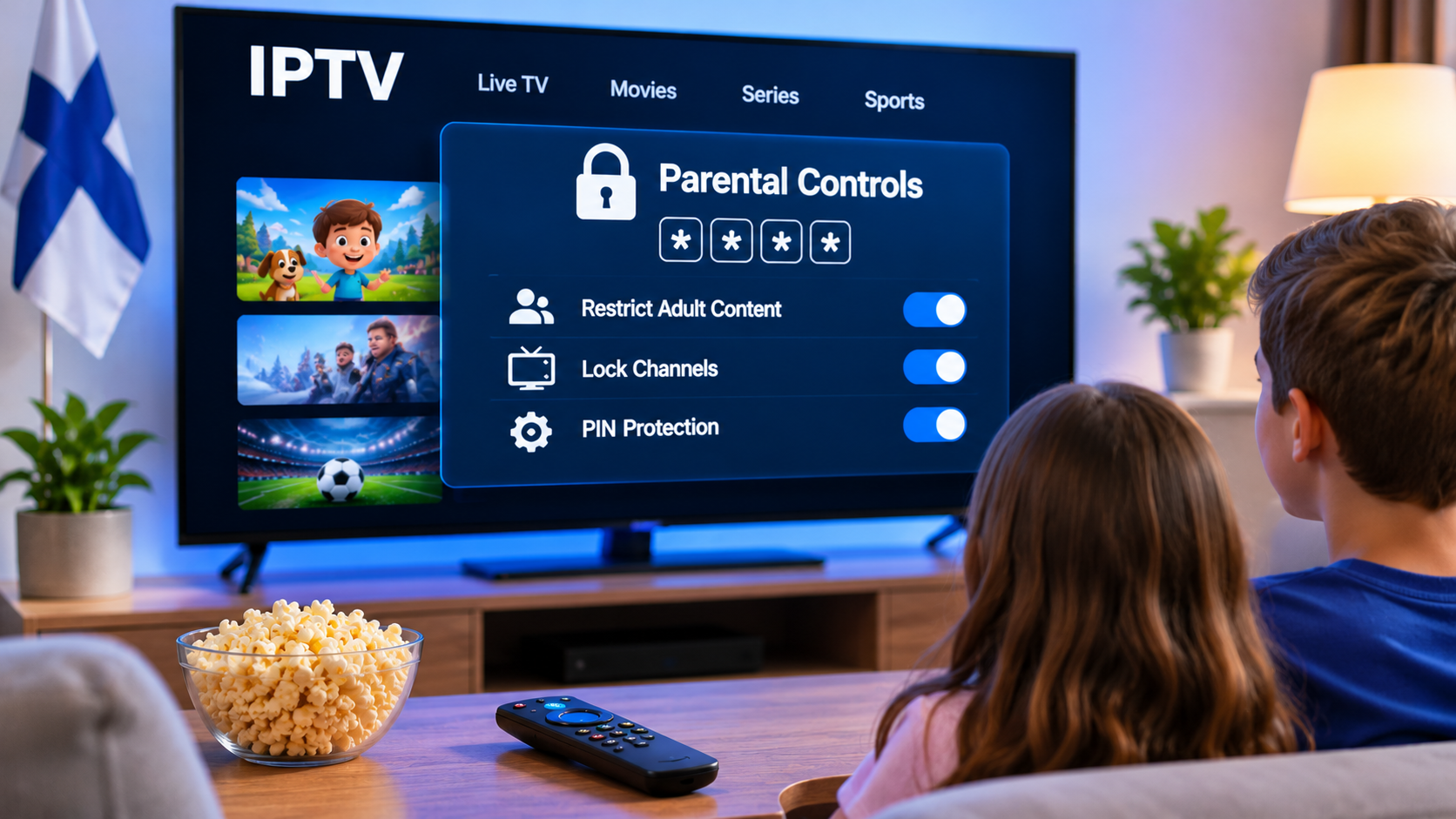
Internet-based television gives households access to a wide range of live channels, movies, series, sports, and on-demand entertainment. That flexibility is useful, but it also means families may want more control over what younger viewers can open.
For households in Finland, parental controls can make IPTV easier to manage by limiting access to selected categories, protecting settings, and keeping adult content away from children's profiles.
The exact options depend on the IPTV player, streaming device, and service being used, so it helps to understand what each part of the setup can control.
What Are IPTV Parental Controls?
Parental controls are settings that restrict access to selected content or features.
Depending on the IPTV player, they may allow parents to:
-
Lock individual channels
-
Protect entire categories
-
Add a PIN to adult content
-
Prevent changes to account settings
-
Restrict app access
-
Create separate profiles
Not every IPTV app includes the same controls.
Some provide detailed restrictions inside the player, while others rely more heavily on the television or streaming device's built-in family settings.
Start With the IPTV Player
The first place to check is the IPTV application itself.
Open the settings menu and look for options such as:
-
Parental Control
-
Content Lock
-
PIN Protection
-
Restricted Categories
-
Profile Settings
The wording varies between applications.
If parental controls are available, users can usually create a numeric PIN that must be entered before protected content can be opened.
Choose a PIN that children cannot easily guess.
Locking Adult Categories
Many IPTV players organize channels and on-demand content into categories.
When the app supports category locking, parents can protect entire sections rather than securing each channel individually.
This can be useful when a playlist contains a large number of channels.
Instead of reviewing everything one by one, selected categories can remain hidden or PIN-protected.
The exact level of control depends on the player.
Channel-Level Restrictions
Some applications allow individual channels to be locked.
This can be helpful when most of a category is suitable for the household but a few channels are not.
Channel-level controls also give families more flexibility than completely hiding a category.
For example, parents may leave general entertainment available while restricting selected late-night or adult-oriented channels.
Protect the Settings Menu
Parental controls are less useful if anyone can simply open the settings menu and turn them off.
A well-designed IPTV player may allow users to protect configuration options with the same PIN.
This can prevent changes to:
-
Playlist settings
-
Account information
-
Content restrictions
-
Player preferences
-
Parental controls
Protecting these settings is especially useful on shared televisions.
Use Device-Level Parental Controls Too
The IPTV app is only one part of the system.
Smart TVs, Fire TV devices, Android TV, Google TV, Apple TV, smartphones, and tablets may also include their own parental controls.
These system-level settings can provide an additional layer of protection.
Depending on the platform, parents may be able to restrict:
-
Application installation
-
In-app purchases
-
App access
-
Screen time
-
Content ratings
-
Account changes
Using both the device and IPTV player's controls can provide more consistent household rules.
Parental Controls on Android TV and Google TV
Android TV and Google TV devices may support family-oriented settings through the Google ecosystem.
The exact options depend on the device model and software version.
Parents should review both:
-
Device settings
-
IPTV app settings
If an IPTV player has its own PIN protection, use that feature alongside the device-level controls rather than assuming one system will manage everything.
Fire TV Family Settings
Amazon Fire TV devices also provide parental control options.
These can help restrict purchases, app access, or certain device functions.
For IPTV, the player may still need separate controls for individual channels or categories.
This is an important distinction.
The Fire TV controls protect the device, while the IPTV player's controls manage content inside the application.
Apple TV, iPhone, and iPad
Apple devices include restrictions that can be managed through system settings.
Parents can use these controls to limit applications, purchases, and other functions.
If an IPTV player also includes content locking, using both layers can create a more controlled environment.
Families using several Apple devices should check that restrictions are configured separately where necessary.
Smart TV Controls
Samsung, LG, and other Smart TVs may provide built-in parental settings.
These can include:
-
App restrictions
-
PIN-protected settings
-
Broadcast channel locks
-
Age-related controls
However, built-in TV restrictions do not always manage content inside third-party IPTV applications.
For that reason, users should check both the television settings and the IPTV app itself.
Create Separate Profiles When Available
Some streaming applications support multiple profiles.
If an IPTV player offers this feature, it can make family use easier.
A household might create:
-
A general family profile
-
A children's profile
-
A sports profile
-
An adult profile
Separate profiles can reduce clutter and make it easier to keep appropriate channels visible.
Not every IPTV player supports individual profiles, so this feature should be checked before choosing an app.
Keep Children's Favorites Simple
Favorites can be useful for more than convenience.
Parents can create a smaller list containing channels that are appropriate for children.
Instead of navigating through the full IPTV playlist, younger viewers can use a carefully selected favorites section.
This can include:
-
Children's programming
-
Educational channels
-
Family entertainment
-
Selected Finnish channels
-
Age-appropriate international content
A smaller list can also make television easier for children to navigate.
Do Not Rely Only on Channel Names
A channel name does not always clearly indicate what type of programming appears throughout the day.
Content can change by schedule.
For important restrictions, parents should review the actual programming rather than relying only on the channel title or category.
Electronic Programme Guide information can help by showing what is currently playing and what is scheduled next.
Use the EPG as a Planning Tool
An Electronic Programme Guide can help parents check upcoming programmes.
Instead of waiting until content starts, the guide may show:
-
Programme title
-
Start time
-
End time
-
Description
This can make it easier to decide what is appropriate before children begin watching.
The information available depends on the channel and IPTV service.
Search Can Reveal More Than the Home Screen
Even when adult categories are hidden, search may still display results from the full library in some applications.
Parents should test this.
Search for restricted categories or titles while using the protected profile.
If locked content still appears and can be opened, additional settings may be needed.
A parental control system should be tested rather than assumed to work perfectly.
Check On-Demand Sections Separately
Live television and on-demand libraries may use different restrictions.
A PIN protecting a live TV category may not automatically protect movies or series.
Review each section independently.
Useful areas to check include:
-
Live TV
-
Movies
-
Series
-
Catch-up TV
-
Search results
-
Recently watched content
A complete family setup should consider all of them.
Hide Unnecessary Categories
Some IPTV players allow users to hide categories even without a parental PIN.
This can simplify the interface.
If a household never watches certain content, removing it from the visible menu reduces clutter and makes accidental access less likely.
Hidden categories and locked categories are not always the same thing, so use PIN protection for anything that genuinely needs restriction.
Choose an IPTV Player With Practical Controls
Parental controls should be easy enough to manage regularly.
An app with complicated menus may discourage users from keeping restrictions updated.
When comparing IPTV players, look for:
-
PIN protection
-
Category locks
-
Channel locks
-
Profile support
-
Easy favorites management
-
Clear settings menus
Families researching IPTV device compatibility and setup options in Finland can review Nordic One IPTV when comparing services and understanding how IPTV can be used across Smart TVs, streaming devices, phones, tablets, and computers.
Checking player compatibility before installation can make family settings easier to manage.
Change the PIN Occasionally
If children learn the parental control PIN, the restrictions lose their purpose.
Changing the PIN periodically can help maintain control.
Avoid obvious combinations such as:
-
0000
-
1234
-
Birth years
-
Repeated digits
Choose something memorable for the adults in the household but difficult for children to guess.
Keep Account Credentials Private
Parental controls are separate from account security.
IPTV usernames, passwords, playlist URLs, and account details should remain private.
Do not store them in places where children or other users can easily copy them.
This is especially important when the IPTV player allows users to edit or replace playlists.
Protecting the app's settings menu can help.
Set Clear Household Rules
Technical controls work best when they support clear household expectations.
Families may decide:
-
Which profiles children can use
-
Which hours television is available
-
Which categories are allowed
-
Whether children can install apps
-
Whether purchases require adult approval
A PIN alone cannot replace basic family rules around screen use.
Consider Screen Time Separately
Parental controls often focus on content, but screen time is another issue.
Many devices provide tools for managing how long children can use apps or screens.
Families who want time-based limits may need to use device-level settings rather than relying on the IPTV player.
This is especially relevant when the same television or tablet is used for games, streaming, and other apps.
Test the Setup Yourself
After configuring restrictions, test them as if you were a child using the device.
Try:
-
Opening a locked channel
-
Searching for restricted content
-
Entering the settings menu
-
Opening movies and series
-
Switching profiles
-
Installing another app
This can reveal gaps that are not obvious during setup.
It is better to find those gaps yourself than discover them later.
Review Controls After App Updates
Software updates can sometimes change menus or reset preferences.
After a major IPTV player or device update, check that parental controls are still active.
You do not need to inspect everything after every small update, but reviewing important restrictions occasionally is sensible.
Avoid Unknown IPTV Applications
Family devices should use software from sources you trust.
Unknown or heavily modified IPTV apps may not provide reliable security or parental control features.
Whenever possible, use applications from official app stores or recognized developers.
This also makes updates easier to manage.
Content Rights Are a Separate Consideration
Parental controls help manage who can access content, but they do not determine whether that content is authorized for distribution.
When choosing any IPTV service, users should consider content rights separately from technical features.
A service being easy to use or offering parental controls does not automatically confirm the licensing status of every stream.
Keep the Setup Manageable
A family IPTV system does not need dozens of profiles and complex restrictions.
For many households, a practical setup may be:
-
One adult profile
-
One child-friendly favorites list
-
A PIN for restricted categories
-
Protected settings
-
Device-level purchase restrictions
Simple controls are easier to maintain consistently.
Final Thoughts
Parental controls can make IPTV more practical for families in Finland, but the best setup usually combines several layers.
Start with the IPTV player's PIN and category controls, then check the television or streaming device's own family settings.
Use favorites to create a smaller child-friendly channel list, protect the settings menu, and test search and on-demand sections to make sure restrictions behave as expected.
The goal is not to make the system complicated. A few well-chosen controls can create a cleaner, safer, and easier television experience for everyone in the household.

 English
 Arabic
 French
 Spanish
 Portuguese
 Deutsch
 Turkish
 Italiano
 Russian
 Romaian
 Portuguese (Brazil)
 Greek