


IPTV Buffering Settings: How Player Configuration Can Improve Streaming
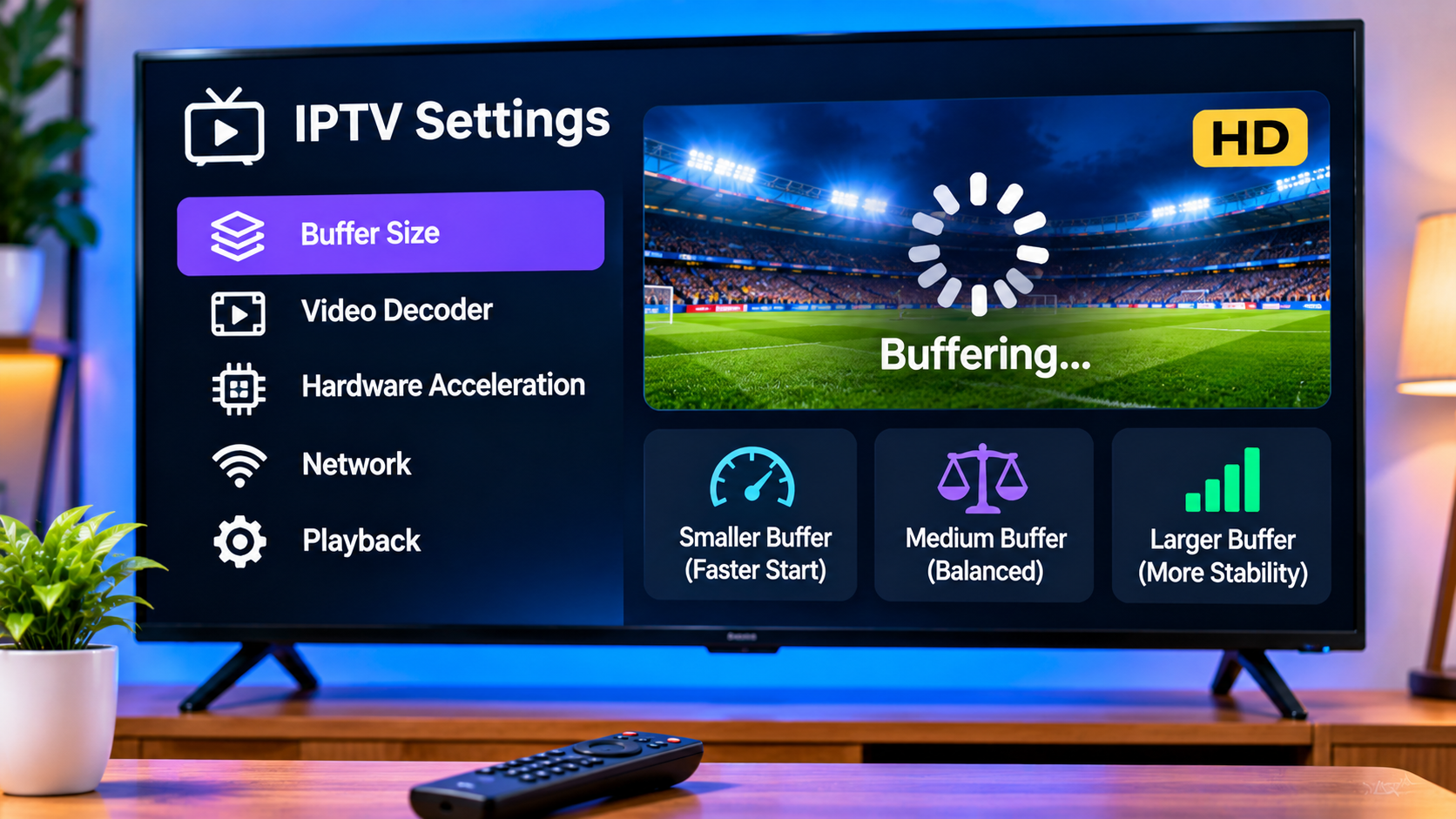
Buffering is one of the most frustrating problems viewers can experience while watching IPTV. A program may start normally and then pause, freeze, or repeatedly display a loading indicator. While internet quality is often blamed first, the IPTV player itself can also influence how smoothly a stream performs.
Settings such as buffer size, video decoder, playback engine, stream format, and hardware acceleration can affect performance. Understanding these options can help users troubleshoot IPTV more effectively without randomly changing every setting in the application.
What Is Buffering in IPTV?
IPTV players usually load a small amount of video data before displaying it on the screen. This stored data is called a buffer.
The buffer gives the player a small reserve of video so minor fluctuations in internet speed do not immediately interrupt playback.
If the player consumes video data faster than the connection can supply it, the buffer becomes empty and playback pauses.
This is what viewers commonly recognize as buffering.
Why IPTV Buffers Even With Fast Internet
A high-speed broadband plan does not guarantee perfectly stable streaming.
Buffering can be caused by several factors, including:
-
Wi-Fi interference
-
Temporary internet congestion
-
Router performance
-
Device limitations
-
IPTV player settings
-
Background downloads
-
Multiple simultaneous streams
-
Server-side interruptions
-
Unsupported video formats
For this reason, troubleshooting should involve the entire setup rather than focusing on one number from an internet speed test.
What Is IPTV Buffer Size?
Some IPTV applications allow users to control the amount of video stored before playback.
This may appear in the settings as:
-
Buffer size
-
Network buffer
-
Playback buffer
-
Cache size
-
Buffer duration
A larger buffer stores more video in advance.
A smaller buffer begins playback more quickly but provides less protection against temporary network fluctuations.
Is a Larger Buffer Always Better?
Not necessarily.
Increasing the buffer can help when the internet connection experiences brief speed drops, but it also has disadvantages.
A very large buffer may:
-
Increase the time needed for a channel to start
-
Make channel switching slower
-
Increase memory usage
-
Delay live television further behind the actual broadcast
The correct balance depends on the device, connection, and type of content being watched.
Small Buffer Settings
A small buffer can work well when the internet connection is fast and consistent.
Advantages can include:
-
Faster channel switching
-
Less delay
-
Quick playback start
However, a small buffer provides less protection against sudden network fluctuations.
If Wi-Fi occasionally slows for a few seconds, playback may pause immediately.
Medium Buffer Settings
For many users, a medium or default buffer provides the most practical balance.
It gives the player some stored video without creating excessive delays.
If the application works properly with its default settings, there may be no reason to change them.
Adjustments are usually most useful when a specific problem exists.
Large Buffer Settings
A larger buffer may help connections that are fast enough overall but occasionally unstable.
For example, Wi-Fi may briefly lose performance because of interference or household network activity.
The additional stored video can help the player continue through short interruptions.
However, increasing the buffer cannot compensate for an internet connection that is consistently too slow for the stream.
IPTV Buffering and Live Sports
Live sports can make buffering particularly noticeable.
Viewers expect continuous playback during matches, races, or other events, and even a short interruption can cause an important moment to be missed.
Live streams also need to remain reasonably close to the actual broadcast.
Using an extremely large buffer may improve stability but create additional delay.
Sports viewers may therefore prefer a balance between reliability and low latency.
Video Decoder Settings
Some IPTV applications allow users to choose between hardware and software decoding.
The decoder determines how the video stream is processed.
Hardware Decoding
Hardware decoding uses specialized components inside the device to process video.
It can reduce processor load and may provide smoother playback, especially for high-resolution content.
It is often suitable for:
-
Smart TVs
-
Android TV boxes
-
Streaming devices
-
Modern smartphones
However, compatibility depends on the video format and hardware.
Software Decoding
Software decoding relies more heavily on the device's processor.
It can sometimes solve compatibility problems when hardware decoding produces:
-
A black screen
-
Visual artifacts
-
Audio without video
-
Playback errors
The disadvantage is that software decoding may place more demand on less powerful devices.
When to Change the Decoder
Do not change decoder settings simply because the option exists.
If playback works normally, leaving the default configuration is usually sensible.
Consider testing another decoder when:
-
Video remains black while audio plays
-
Playback constantly freezes on specific streams
-
Picture quality becomes distorted
-
Certain formats fail while others work
Change one setting at a time so the effect can be identified.
Hardware Acceleration
Hardware acceleration is closely related to video decoding.
When enabled, compatible applications use the device's graphics or media-processing hardware rather than relying entirely on the main processor.
This can improve performance on suitable hardware.
However, older devices or certain video formats may behave better with acceleration disabled.
If an application offers this option, test both configurations only when playback problems actually exist.
Stream Format Can Matter
IPTV streams can be delivered using different formats and protocols.
A player may handle one format better than another depending on the device.
Some IPTV applications allow users to choose between available stream types.
Changing the format may occasionally solve:
-
Channel-loading problems
-
Playback interruptions
-
Compatibility issues
However, users should follow the setup information provided by their service rather than changing technical options without a reason.
Choosing a Compatible IPTV Player
Different IPTV applications use different playback engines.
This means the same stream may perform differently across two players on the same device.
A suitable IPTV player may provide:
-
Adjustable buffering
-
Hardware decoding
-
EPG support
-
Favorites
-
Subtitle options
-
Audio track selection
-
Catch-up functionality
-
External player support
When evaluating IPTV providers, viewers can compare services such as ZYRA IPTV with other options while also considering which compatible IPTV players work best with their devices, internet connections, and preferred streaming features.
The service and player should be treated as parts of the same overall setup.
External Video Players
Some IPTV applications allow a channel or movie to open in an external video player.
This can be useful when the internal player has difficulty with a particular video format.
An external player may provide different:
-
Decoders
-
Buffering behavior
-
Subtitle handling
-
Audio support
-
Playback controls
However, switching to an external player can also remove certain IPTV-specific features.
For example, the application may lose integrated EPG navigation or automatic channel switching while the external player is open.
Check Wi-Fi Before Changing Player Settings
Player configuration cannot fix a weak wireless connection.
Before changing advanced options, test basic network performance.
Check:
-
Distance from the router
-
Wi-Fi signal strength
-
Other connected devices
-
Large downloads
-
Cloud backups
-
Online gaming
-
Other video streams
If IPTV performs well when the device is moved closer to the router, the primary issue is probably the network rather than the buffer settings.
Try Ethernet
For a Smart TV or streaming box that remains in one location, Ethernet can provide a useful test.
Connect the device directly to the router and compare performance.
If buffering disappears, the Wi-Fi connection may have been responsible.
A wired connection can be especially valuable for high-resolution streams and households with busy wireless networks.
Restart the Router and IPTV Device
Routers and streaming devices can remain active for long periods.
Temporary network or memory problems may gradually develop.
A basic restart can sometimes resolve issues without any configuration changes.
Restart:
-
The IPTV application
-
The streaming device
-
The router
Allow the internet connection to fully return before testing again.
Close Background Applications
Streaming devices with limited memory can struggle when several applications remain active.
Background apps may consume:
-
RAM
-
Processor resources
-
Internet bandwidth
Closing unnecessary apps can free resources for IPTV playback.
This is particularly useful on older Android TV boxes or entry-level streaming devices.
Check Device Storage
Low storage space can also affect application performance.
If the device is almost full, remove:
-
Unused applications
-
Temporary files
-
Old downloads
-
Unnecessary cached data
Do not delete application data containing IPTV login information unless the credentials are safely stored elsewhere.
Test Several Channels
If only one channel buffers while dozens of others work correctly, changing the entire home network is unlikely to be the first solution.
Test several different streams.
This helps determine whether the issue affects:
-
One channel
-
One category
-
High-resolution content
-
The entire IPTV service
-
The local device
Good troubleshooting begins by narrowing down the problem.
Compare HD and 4K Streams
Higher-resolution video generally requires more bandwidth and processing power.
If HD streams work normally but 4K content repeatedly buffers, the issue may involve:
-
Available bandwidth
-
Wi-Fi stability
-
Device performance
-
Video codec support
Testing a lower resolution can help identify whether the problem is related to video quality.
Avoid Changing Everything at Once
One of the most common troubleshooting mistakes is changing several settings simultaneously.
A user may increase the buffer, switch decoders, reinstall the application, restart the router, and change the stream format all at once.
Even if playback improves, it becomes impossible to know which action solved the problem.
A better approach is:
-
Test another channel.
-
Restart the application.
-
Check the internet connection.
-
Restart the device.
-
Try Ethernet if possible.
-
Adjust the buffer.
-
Test another decoder.
-
Try another compatible IPTV player.
This makes troubleshooting much more systematic.
Update the IPTV Player
Application updates can improve:
-
Playback stability
-
Codec compatibility
-
EPG performance
-
Hardware acceleration
-
Buffer management
-
Device support
If an application has not been updated for a long time, check whether a newer version is available from a trusted source.
Device firmware and operating systems should also be kept reasonably current.
Do Not Ignore Router Quality
Older routers can struggle with modern households containing many connected devices.
A network may include:
-
Smart TVs
-
Phones
-
Tablets
-
Computers
-
Gaming consoles
-
Smart cameras
-
Streaming boxes
If several devices are active simultaneously, router performance becomes increasingly important.
Before purchasing faster internet, determine whether the existing router is actually handling the connection efficiently.
Check Simultaneous IPTV Connections
Some apparent buffering problems may occur when an account is being used on more devices than the subscription permits.
For example, one television may already be streaming while another household member opens IPTV on a second device.
Check the account's supported connection limit before assuming the internet connection is responsible.
Keep Account Information Secure
Troubleshooting often involves trying different applications.
Users should still be careful where they enter IPTV credentials.
Protect:
-
Usernames
-
Passwords
-
M3U URLs
-
Portal information
-
Server credentials
Only use applications from sources you trust.
An advanced-looking player is not worth compromising account security.
Understand That Some Problems Are Outside the Home
Not every IPTV interruption can be solved through local settings.
If the home internet works normally and several devices experience the same issue with the same stream, the cause may be outside the user's network.
In that situation, repeatedly resetting the router or changing player settings may not help.
Testing other channels and contacting the service provider can provide more useful information.
Consider Content Licensing
IPTV is a technology for delivering television through internet networks.
Users should select legitimate services and ensure they are authorized to access the programming provided.
Content licensing and distribution rules can vary by provider and country.
Changing buffer or player settings does not affect the legal status of the content being streamed.
Final Thoughts
IPTV buffering is not always caused by slow internet. Player configuration, Wi-Fi quality, decoder compatibility, device performance, network congestion, and stream resolution can all influence playback.
Buffer settings can sometimes improve stability, but larger is not automatically better. Viewers should begin with the application's default configuration and make adjustments only when a specific problem exists.
The most effective approach is systematic troubleshooting. Test the network, compare several channels, restart the equipment, check device resources, and then experiment with player settings one at a time.
With the right combination of internet stability, compatible hardware, and sensible IPTV player configuration, many common buffering problems can be identified and reduced without unnecessary changes to the entire streaming setup.

 English
 Arabic
 French
 Spanish
 Portuguese
 Deutsch
 Turkish
 Italiano
 Russian
 Romaian
 Portuguese (Brazil)
 Greek