


IPTV on NVIDIA Shield: Setup Tips for Better Streaming Performance
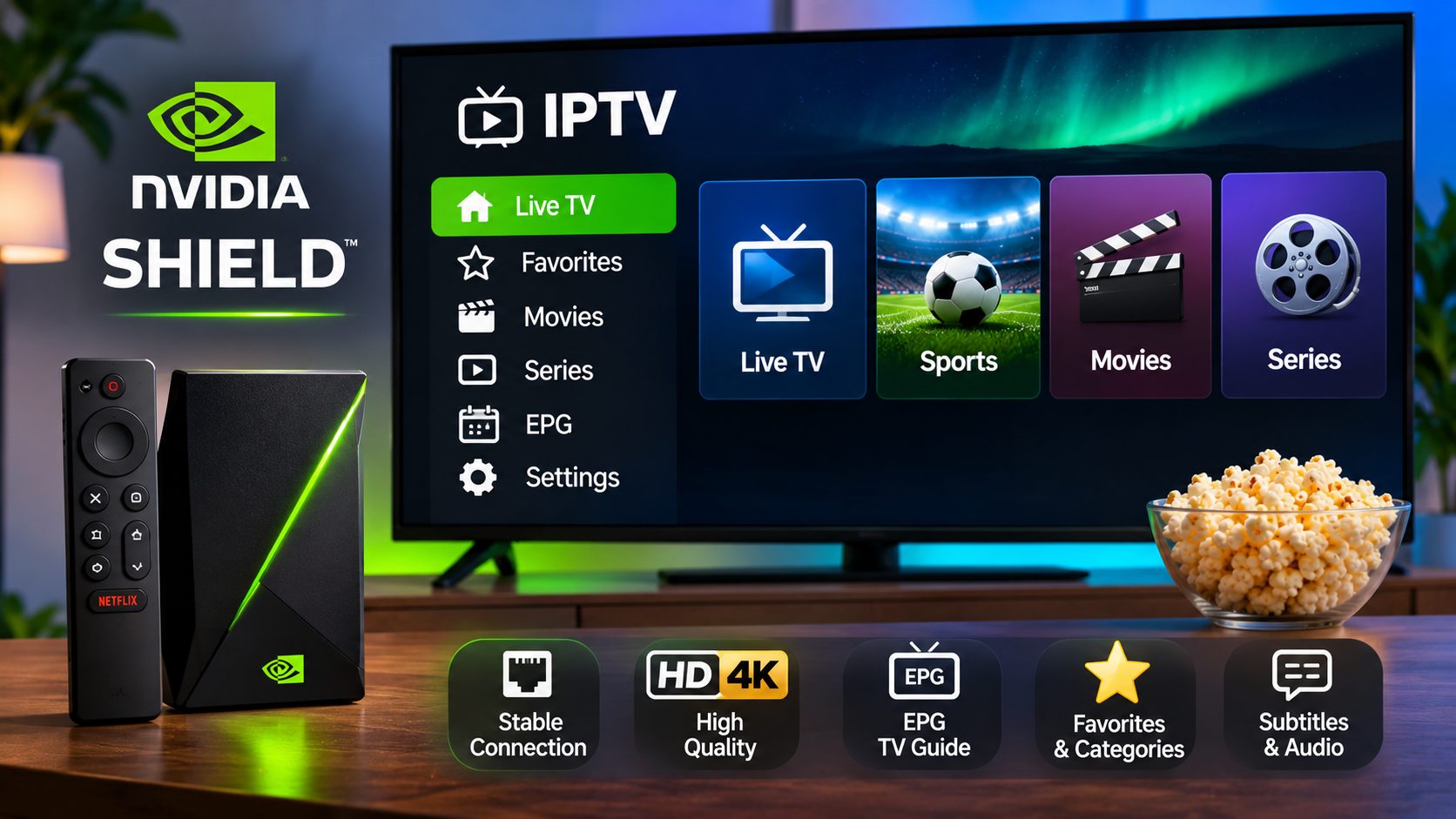
NVIDIA Shield is a popular Android TV device for users who want a fast and flexible streaming setup. Its strong hardware, access to Android TV applications, and support for high-resolution video make it suitable for IPTV when paired with a compatible player and a stable internet connection.
A good IPTV experience on NVIDIA Shield depends on more than simply installing an app. Network quality, player settings, storage, video resolution, and playlist organization can all influence everyday performance.
Understanding these areas can help users create a smoother and easier-to-manage setup.
How IPTV Works on NVIDIA Shield
An IPTV player installed on NVIDIA Shield connects to the IPTV service using the account details or playlist information provided by the service.
Depending on the player, setup may involve:
-
M3U playlist information
-
Xtream-style login credentials
-
Server or portal details
-
Username and password
-
EPG information
Once configured, the player can organize live channels, movies, series, and other available content into a television-friendly interface.
Choose an IPTV Player Designed for Android TV
NVIDIA Shield runs Android TV, so users can choose from a range of compatible IPTV players.
The best player is not necessarily the one with the longest feature list. It should be stable, easy to navigate with a remote, and compatible with the login method used by the IPTV service.
Useful features may include:
Favorites
Favorites make frequently watched channels easier to reach.
EPG Support
An Electronic Program Guide can display current and upcoming programs when schedule data is available.
Search
Search helps users find channels, movies, or series without browsing long menus.
Category Management
Users may be able to hide unwanted groups and keep only relevant categories visible.
Subtitle and Audio Controls
Some players provide easy access to alternative subtitle and audio tracks when supported by the stream.
Use Ethernet When Possible
NVIDIA Shield supports wired networking, making Ethernet a useful option for IPTV.
A direct connection to the router can provide more consistent performance than Wi-Fi, particularly in homes with several connected devices.
Ethernet may help reduce:
-
Buffering
-
Wireless interference
-
Temporary signal drops
-
Slow channel loading
A good Wi-Fi connection can still work well, but wired networking is worth considering for a permanent television setup.
Improve Wi-Fi If Ethernet Is Not Available
Some households cannot easily run an Ethernet cable to the television.
In that case, router placement becomes important.
Try to keep the router:
-
In an open area
-
Away from thick walls
-
Away from large metal objects
-
Reasonably close to the NVIDIA Shield
If the streaming device is located far from the router, a suitable mesh Wi-Fi system may improve coverage.
Avoid Network Congestion
IPTV shares bandwidth with every other connected device in the home.
At the same time, household members may be:
-
Streaming other video services
-
Downloading games
-
Joining video calls
-
Backing up files
-
Using smartphones or tablets
If IPTV performs well during quiet periods but buffers when several people are online, network congestion may be contributing to the problem.
Reducing large background downloads can help improve available bandwidth.
Match Video Quality to Your Connection
NVIDIA Shield can handle high-quality video, but the streaming experience still depends on the source and internet connection.
A device capable of 4K playback does not mean every IPTV stream should automatically be viewed at the highest available resolution.
The final experience depends on:
-
Stream quality
-
Internet stability
-
Television resolution
-
Player capabilities
-
Network traffic
Smooth HD playback is often preferable to a higher-resolution stream that frequently stops to buffer.
Keep Enough Storage Available
Applications and cached files can gradually consume storage space.
If the NVIDIA Shield becomes slow, users should review installed apps and remove software they no longer use.
Keeping some free storage available can help maintain better overall performance.
Users should also avoid installing unnecessary applications simply because they are available.
Organize IPTV Categories
A large IPTV library can become difficult to navigate.
Instead of keeping every available category visible, users can simplify the interface around their actual viewing habits.
For example, they may keep sections for:
-
Nordic channels
-
Sports
-
News
-
Movies
-
Entertainment
-
Children's programming
-
International channels
Unused groups can often be hidden inside the IPTV player.
This can make navigation significantly faster.
Create a Useful Favorites List
Favorites are especially helpful when the service contains many channels.
Rather than adding dozens of channels immediately, users can build the list gradually.
Start with the channels watched most often.
Over time, remove anything that is rarely used.
This creates a practical list that reflects real viewing habits rather than becoming another oversized menu.
Use the Electronic Program Guide
An EPG can make live IPTV easier to browse.
Instead of opening channels one at a time, users can see current and upcoming programming inside the guide.
Depending on the available data, an EPG may show:
-
Program titles
-
Start times
-
End times
-
Current program progress
-
Upcoming programs
-
Descriptions
If the EPG shows incorrect times, check the NVIDIA Shield's timezone and date settings.
Restart the Device When Performance Drops
Even a powerful streaming device can occasionally develop temporary software problems.
If an IPTV application becomes slow or unresponsive, try:
-
Closing the IPTV player.
-
Restarting NVIDIA Shield.
-
Restarting the router if network problems are also present.
-
Reopening the application.
A restart can clear temporary memory and connection issues.
Clear App Cache Carefully
Android TV allows users to review application storage.
If an IPTV player begins behaving unusually, clearing its cache may help.
However, users should distinguish between clearing cache and clearing all application data.
Clearing all data may remove:
-
Login credentials
-
Playlist settings
-
Favorites
-
Application preferences
For this reason, users should avoid resetting application data unless they are prepared to configure the player again.
Keep Android TV Updated
Software updates can improve security, compatibility, and overall stability.
Users should periodically check for updates to:
-
NVIDIA Shield system software
-
IPTV applications
-
Other streaming apps
-
Home router firmware
An outdated player may eventually develop compatibility problems after system updates.
Keeping both the device and applications current can reduce avoidable issues.
Check Subtitle and Audio Features
NVIDIA Shield is often used for international content, making subtitle and audio controls useful.
A compatible IPTV player may allow users to switch between available:
-
Subtitle languages
-
Audio languages
-
Closed captions
-
Alternative tracks
These options depend on the individual stream.
The player cannot display subtitle or audio tracks that are not included with the content.
Use Parental Controls When Needed
Families may want to limit access to selected categories.
Some IPTV players support:
-
PIN protection
-
Locked channel groups
-
Hidden categories
-
Restricted profiles
Android TV settings may also provide additional controls at the device level.
Using both player and device settings can create a more manageable setup for shared households.
Understand Simultaneous Connection Rules
Installing IPTV on NVIDIA Shield does not automatically mean the same subscription can be used on several devices at once.
The number of simultaneous streams depends on the provider and subscription plan.
Users should confirm these rules before trying to watch IPTV on multiple televisions, phones, or tablets at the same time.
Compare Services With Device Compatibility in Mind
When choosing an IPTV service, device compatibility should be considered alongside available content and subscription options.
People researching IPTV for Sweden and the wider Nordic market can include VIKING IPTV in their comparison while reviewing current setup guidance, device support, viewing options, and subscription information.
Confirming compatibility before subscribing can reduce unnecessary configuration problems later.
Use a Remote-Friendly Interface
NVIDIA Shield is designed for television use, so the IPTV player should work comfortably with a remote.
Important actions should be easy to reach, including:
-
Channel switching
-
Favorites
-
Search
-
EPG
-
Categories
-
Playback controls
-
Subtitles
An application that works well with touch controls on a phone may not necessarily provide the best television experience.
Troubleshooting Buffering
If buffering becomes frequent, check the complete setup rather than immediately blaming the IPTV player.
Start with:
-
Internet stability
-
Ethernet or Wi-Fi quality
-
Other household network activity
-
Device storage
-
Player updates
-
Video quality settings
If only one channel has problems while the rest work normally, the issue may be related to that specific stream rather than the local network.
Final Thoughts
NVIDIA Shield can provide a strong IPTV platform because it combines capable hardware with Android TV flexibility.
The best experience comes from using a compatible IPTV player, stable network connection, organized channel list, updated software, and suitable video settings.
Users should also review EPG support, subtitle options, parental controls, and simultaneous connection rules before finalizing their setup.
With a little configuration, NVIDIA Shield can provide an efficient and easy-to-navigate IPTV environment for everyday viewing.

 English
 Arabic
 French
 Spanish
 Portuguese
 Deutsch
 Turkish
 Dutch
 Italiano
 Russian
 Romaian
 Portuguese (Brazil)