

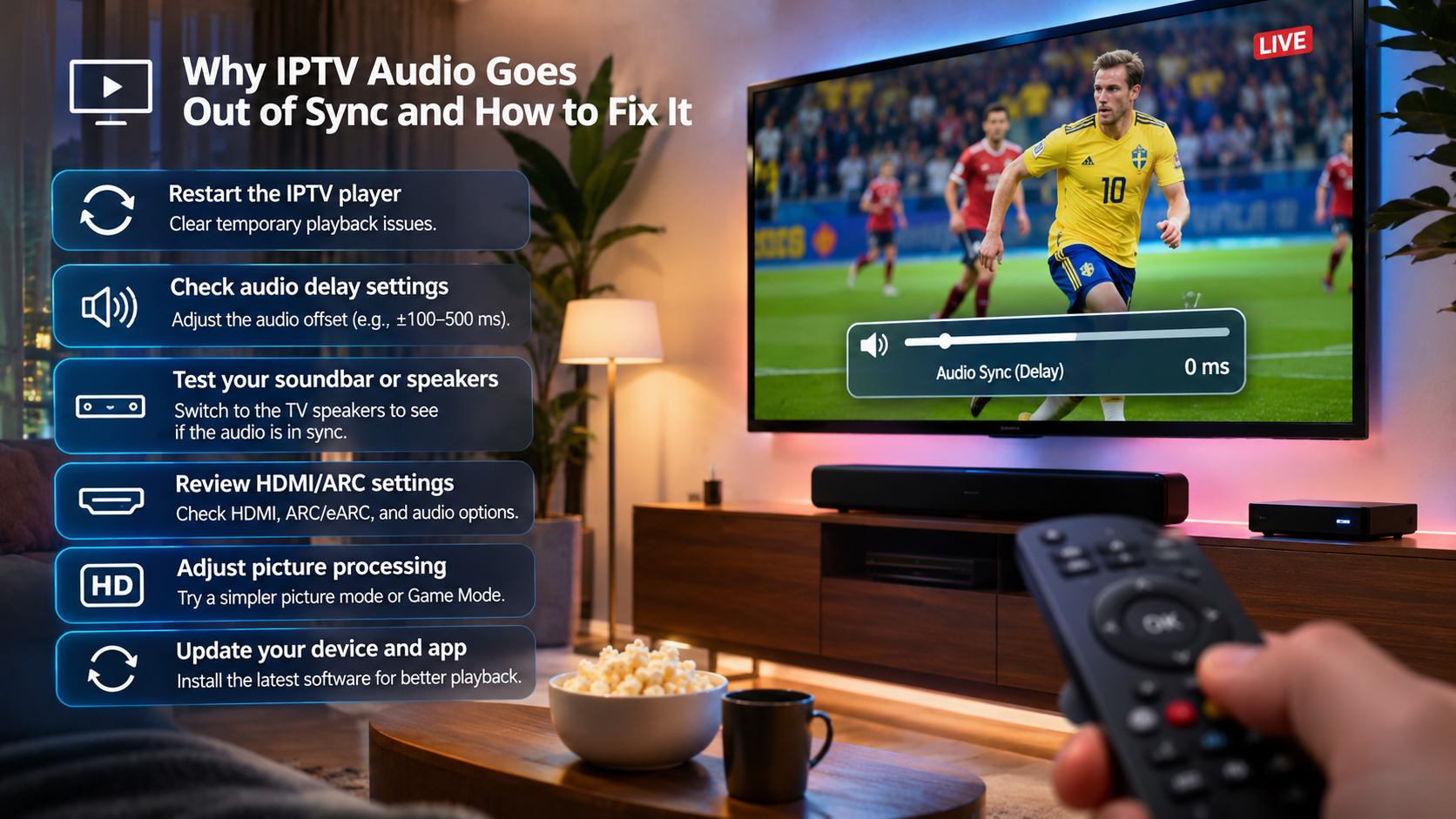
Why IPTV Audio Goes Out of Sync and How to Fix It
Few streaming problems are more distracting than seeing someone speak and hearing the words a second later. Sometimes the opposite happens and the sound arrives before the picture.
This is usually called an audio sync or lip-sync problem.
With IPTV, the cause is not always the channel itself. The player, television, soundbar, streaming box, Bluetooth connection, or video format can all introduce small delays.
The good news is that most audio-sync problems can be narrowed down without changing the entire IPTV setup.
First, Check Whether Every Channel Has the Problem
Before opening advanced settings, switch between several unrelated channels.
If only one channel has delayed audio while the others are normal, the problem may be coming from that particular stream.
If every channel has the same delay, look more closely at your device, IPTV player, or audio equipment.
This simple test can prevent you from changing settings that were already correct.
Try Another Type of Content
Live television is useful for testing, but try a movie or series too if your IPTV setup includes them.
Imagine this situation:
A football channel has delayed commentary, but movies and other live channels are perfectly synchronized.
That suggests a source-specific issue.
If movies, series, and every live channel all have the same delay, the problem is more likely somewhere in your local setup.
Restart the IPTV Player
Applications sometimes develop temporary playback problems after running for long periods.
Close the IPTV player completely and open it again.
On some Smart TVs and streaming boxes, simply pressing the Home button does not fully close an application.
Use the device's app-management controls if necessary, then reopen IPTV and test the same channel.
It is a basic step, but it can solve temporary decoder or playback issues.
Restart the Streaming Device
If reopening the app changes nothing, restart the television or streaming box.
This is particularly useful on:
-
Android TV
-
Google TV
-
Apple TV
-
Fire TV
-
Smart TVs
-
Dedicated IPTV boxes
A restart clears temporary processes and reloads the audio and video components used by the player.
Check Whether the IPTV Player Has an Audio Delay Setting
Some IPTV players include manual audio synchronization controls.
The option may be called:
-
Audio Delay
-
Audio Offset
-
AV Sync
-
Lip Sync
-
Sound Delay
A positive or negative adjustment can move the audio until it matches the picture.
For example, if the sound arrives too early, adding a small delay may bring it back into sync.
Make small changes rather than jumping immediately to a large value.
A difference of a few hundred milliseconds can already be noticeable.
Do Not Use Audio Offset as the First Fix
Manual audio delay is useful, but it should not automatically become a permanent workaround.
If every stream suddenly became out of sync after a software update or hardware change, try to understand why.
Otherwise, you may fix one channel and make another worse.
Use offset controls after you have identified whether the problem is global or limited to certain streams.
Soundbars Can Introduce Delay
Many modern television setups use a soundbar.
The video reaches the screen while the audio may travel through another device and undergo extra processing.
That can introduce a slight delay.
If you use a soundbar, temporarily switch the television back to its built-in speakers.
Then test IPTV again.
If the sound suddenly matches the picture, the soundbar or its connection method deserves attention.
Check the Soundbar's Lip-Sync Setting
Some soundbars include their own audio-delay controls.
These may appear in the remote menu or mobile application.
Look for settings labelled:
-
Sync
-
AV Sync
-
Audio Delay
-
Lip Sync
If both the television and soundbar have delay adjustments enabled, the combination can sometimes make the problem worse.
Try keeping adjustments in one place rather than stacking several corrections together.
HDMI Connections Can Affect Timing
Audio and video often travel through HDMI between a streaming box, television, receiver, or soundbar.
A typical living-room setup might be:
Streaming box → TV → Soundbar
Another setup might be:
Streaming box → Receiver → TV
Each additional component can process the signal.
If audio sync is consistently wrong, simplify the chain temporarily.
Connect the IPTV device directly to the television and use the TV speakers.
If synchronization improves, add the other components back one at a time.
This helps identify where the delay begins.
HDMI ARC and eARC Settings Matter
Many televisions send sound to soundbars through HDMI ARC or eARC.
These technologies are convenient, but audio-processing settings can affect timing.
If your TV and soundbar both support eARC, check whether they are configured correctly.
Do not randomly change every HDMI option at once.
Change one setting, test IPTV, and note whether synchronization improves.
Bluetooth Can Add Noticeable Delay
Bluetooth headphones and speakers are convenient, but wireless audio can introduce latency.
This can become especially obvious during:
-
News
-
Interviews
-
Sports commentary
-
Dialogue-heavy programs
If IPTV is in sync through the television speakers but delayed through Bluetooth headphones, the stream itself is probably fine.
The Bluetooth connection is adding the delay.
Some devices compensate for this automatically, while others do not.
Try Wired Audio as a Comparison
If you normally use Bluetooth audio, test:
-
TV speakers
-
Wired headphones
-
HDMI soundbar
-
Optical audio
You do not necessarily need to permanently change your setup.
The purpose is to identify whether the audio path is creating the problem.
A five-minute comparison can reveal more than repeatedly changing IPTV settings.
Picture Processing Can Delay the Video
Televisions often apply video-processing features designed to improve the image.
These can include:
-
Motion smoothing
-
Noise reduction
-
Sharpness processing
-
Dynamic picture modes
-
Frame interpolation
Processing takes time.
In some cases, the television delays the picture slightly while the sound continues normally.
Try switching the television to a simpler picture mode or Game Mode as a test.
If lip sync improves, video processing may be contributing to the delay.
Game Mode Can Be a Useful Test
Game Mode is designed to reduce display latency.
You do not necessarily need to use it permanently for IPTV.
However, it is useful for troubleshooting.
If audio and video immediately synchronize after enabling Game Mode, the television's normal picture processing is probably adding delay.
From there, you can decide whether to keep Game Mode or selectively disable individual processing features.
External IPTV Players Can Behave Differently
Some IPTV applications allow streams to open in an external video player.
The built-in player may use one decoding method while the external player uses another.
If a particular channel repeatedly has audio-sync problems, testing a different playback engine can help.
However, external players may not support every IPTV feature.
You could lose:
-
EPG integration
-
Fast channel switching
-
Favorites behavior
-
Catch-up controls
Use another player mainly as a troubleshooting comparison.
Hardware Decoding Versus Software Decoding
Advanced IPTV players sometimes let users choose between hardware and software decoding.
Hardware decoding allows the device's dedicated video hardware to handle playback.
Software decoding relies more heavily on the processor.
One option may work better with a particular video format.
If audio sync problems occur only on certain streams, testing another decoding mode can sometimes help.
Do not change this setting unless your player actually provides it and you understand how to return to the original configuration.
Older Streaming Boxes May Struggle
An inexpensive or older streaming box may become overloaded by high-resolution video.
When the device cannot decode video smoothly, audio and picture can gradually drift apart.
Other signs can include:
-
Dropped frames
-
Slow menus
-
Device overheating
-
Frequent buffering
-
Delayed channel changes
Restart the box and close unnecessary applications.
If storage is almost full, remove unused apps or files.
Heat Can Affect Performance
Streaming devices can become surprisingly warm.
A box hidden behind a television or inside a closed cabinet may receive very little airflow.
When hardware overheats, performance can drop.
If audio sync becomes worse after the device has been running for several hours, check whether it feels unusually hot.
Move it to a better-ventilated location and test again.
Update the IPTV Application
Playback problems can sometimes be application bugs.
Check whether your IPTV player has an update available through a trusted source.
Updates may improve:
-
Audio decoding
-
Video compatibility
-
Hardware acceleration
-
Device support
-
Playback stability
If the problem appeared immediately after an update, check the developer's release information or support documentation before changing unrelated network settings.
Update the Streaming Device Too
The IPTV application is only one part of the playback chain.
The operating system also manages audio, video decoding, HDMI output, and device drivers.
Check for system updates on your:
-
Smart TV
-
Android TV device
-
Apple TV
-
Streaming box
-
Fire TV device
Keeping both the player and operating system current can help prevent compatibility problems.
Internet Problems Usually Look Different
Audio synchronization issues are sometimes blamed on internet speed.
Poor internet can certainly create:
-
Buffering
-
Freezing
-
Resolution drops
-
Stream interruptions
But a stable stream with a constant half-second audio delay is often more closely related to playback or audio processing.
If the stream repeatedly freezes and then returns with incorrect synchronization, however, network instability may still be involved.
Test Another Network if Necessary
If you are unsure, compare the same stream on another connection.
For example, test it on a smartphone using mobile data.
If the channel remains out of sync on a completely different device and network, the problem may come from the stream itself.
If it works perfectly elsewhere, investigate your main device or audio setup.
Sports Make Audio Delay Easy to Notice
Live sports are particularly good for spotting sync problems.
You may hear:
-
A kick before seeing it
-
The crowd react too early
-
Commentary describe an event before it appears on screen
That makes sports useful for troubleshooting.
However, remember that commentary itself may sometimes come from a different production source and contain an intentional or broadcast-level delay.
Compare several channels before assuming your device is responsible.
News Programs Are Another Good Test
News and interviews make lip-sync problems obvious because you can clearly watch people speaking.
If speech matches perfectly on a news channel but not on one sports stream, that tells you something useful.
The more comparisons you make, the less likely you are to change settings unnecessarily.
Nordic IPTV Viewing Across Different Devices
Nordic households may watch IPTV across Smart TVs, Apple TV, Android boxes, tablets, and other devices, so the same stream can behave differently depending on the hardware and player.
People researching Nordic streaming options and device compatibility may come across Nordic IPTV King while comparing IPTV-related services and setup information for Sweden and the wider Nordic market.
Whatever service is used, testing the same content on another compatible device is one of the simplest ways to separate a stream problem from a hardware problem.
A Simple Audio-Sync Troubleshooting Routine
When sound and picture stop matching, try this order.
1. Change the channel
See whether the problem affects one stream or many.
2. Restart the IPTV application
Clear temporary playback problems.
3. Restart the device
Reload the audio and video systems.
4. Test the TV speakers
Remove the soundbar or Bluetooth connection from the equation.
5. Check audio-delay settings
Make small adjustments only if necessary.
6. Disable heavy picture processing
Use a basic picture mode as a test.
7. Try another IPTV player
Determine whether the playback engine is contributing.
8. Test another device
See whether the same stream behaves normally elsewhere.
Following this sequence gives you a much better chance of finding the real cause.
Do Not Change Everything at Once
This is probably the most important troubleshooting rule.
If you simultaneously change the TV audio delay, soundbar sync, IPTV player decoder, and picture mode, you may accidentally fix the problem without understanding what caused it.
Then the next time it happens, you are back at the beginning.
Make one change, watch for a minute, and compare.
Keep Your Setup as Simple as Possible
Every additional device adds another potential processing step.
A complicated living-room system might include:
IPTV box → AV receiver → TV → Soundbar
That can work perfectly when configured correctly, but troubleshooting becomes more difficult.
If problems appear, temporarily reduce the setup to:
IPTV device → TV
Once synchronization is correct, reconnect additional equipment one at a time.
Respect Content and Service Terms
Audio synchronization is a technical issue and does not determine whether a stream is properly licensed.
Use legitimate IPTV and streaming services with appropriate distribution rights, and follow applicable copyright laws and platform terms.
Final Thoughts
Audio sync problems can come from several places, which is why blindly changing IPTV settings often does not help.
Start by checking whether the problem affects one channel or everything. Then simplify the setup by testing TV speakers, restarting the player, and comparing another device.
Soundbars, Bluetooth audio, picture processing, decoding settings, and older hardware can all introduce delay.
Once you identify where the timing difference begins, fixing it is usually much easier than rebuilding the entire IPTV setup.

 Arabic
 French
 Spanish
 Portuguese
 Deutsch
 Turkish
 Dutch
 Italiano
 Russian
 Romaian
 Portuguese (Brazil)
 Greek