


How to Convert Video to MP3: Quality, Formats and Legal Basics
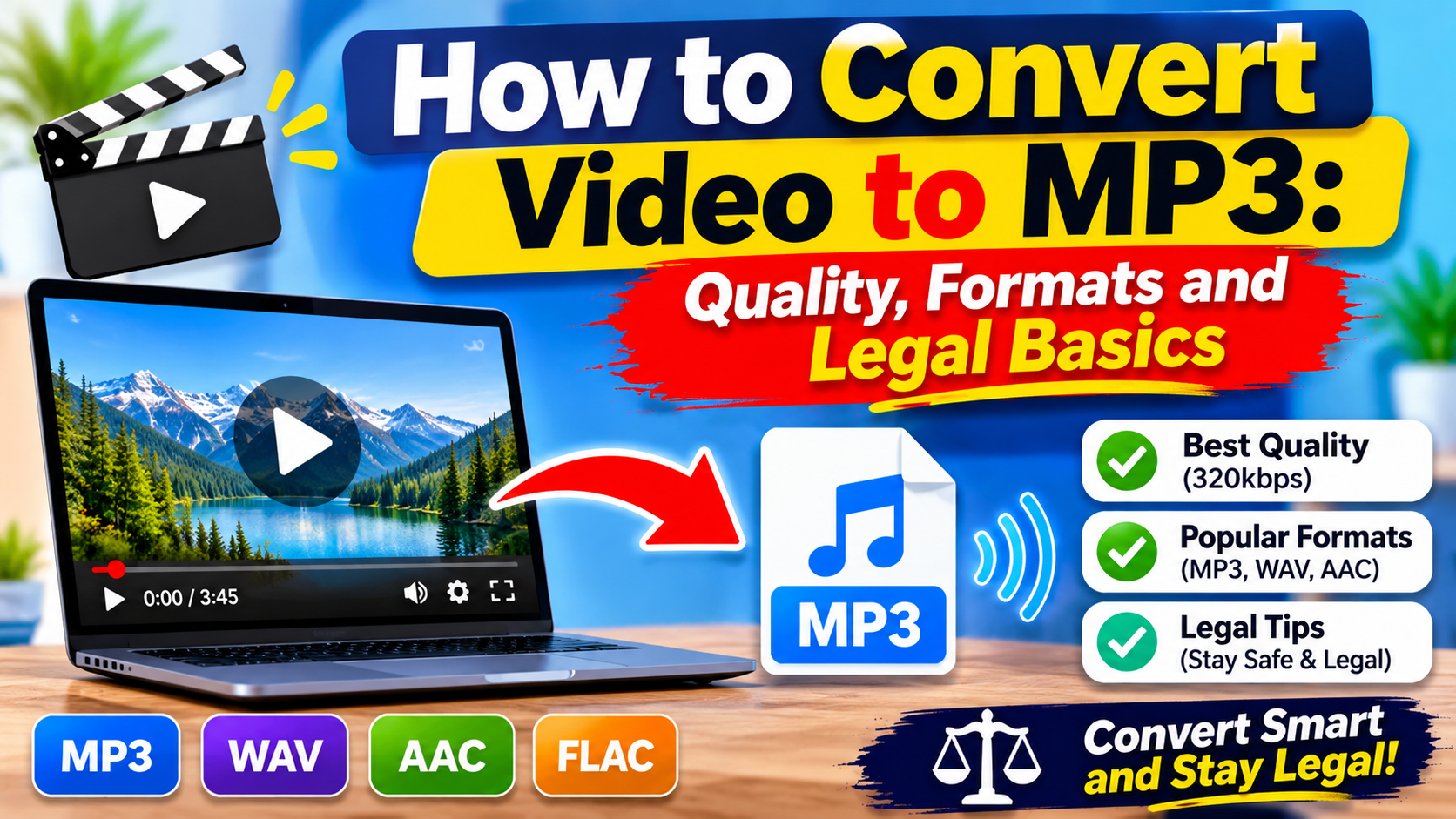
Sometimes you only need the sound from a video: a lecture you recorded, an interview for a podcast, a voice note, or music you created yourself. Converting video to MP3 lets you save that audio in a small file that plays almost anywhere.
This guide explains how the process works, which settings matter, how to stay safe online, and when extracting audio is and is not appropriate.
What Does Converting Video to MP3 Mean?
A video file, such as MP4, MOV, or MKV, contains both a video track and an audio track. Converting to MP3 separates the audio and saves it in the MP3 format, which uses compression to keep files small.
MP3 is a lossy format. It removes some audio detail to reduce size, so quality depends on the source and on the settings you choose.
When Is It Appropriate to Convert Video to MP3?
This section is general information, not legal advice. Copyright and platform rules differ by country and service, so always check the rules that apply to you.
Usually fine:
-
Your own recordings, such as interviews, meetings, voice memos, and music you created
-
Videos where the owner has given you clear permission
-
Content released under licenses that allow reuse, such as some Creative Commons works, as long as you follow the license terms
-
Public domain material
Be careful or avoid:
-
Extracting audio from copyrighted videos or music that you do not have permission to copy
-
Downloading from platforms in ways their terms of service prohibit
-
Redistributing or selling audio you do not own
When in doubt, ask the owner or use content that is clearly licensed for your purpose.
Step-by-Step: How to Convert Video to MP3
Step 1: Confirm You Have the Right to Use the Video
Check that the video is yours or that you have permission. This takes a few seconds and prevents most problems.
Step 2: Prepare the Video File
Make sure the file is saved on your device and plays correctly. Note its length and size, because many online tools have file size or duration limits. If the video is very large, trim it first to the section you need.
Step 3: Use a Video to MP3 Converter
Open a reliable video-to-MP3 converter, upload your file, and select MP3 as the output. Look for a tool that works in the browser, clearly explains its limits, and does not force you to install extra software.
Step 4: Choose Your Quality Settings
If the tool offers a bitrate option, choose based on what the audio contains:
|
Use case |
Suggested bitrate |
Approx. size per minute |
|
Speech, lectures, voice notes |
96 to 128 kbps |
0.7 to 1 MB |
|
General listening and podcasts |
128 to 192 kbps |
1 to 1.4 MB |
|
Higher-quality music |
256 kbps |
1.9 MB |
|
Best quality in MP3 |
320 kbps |
2.4 MB |
File size is roughly bitrate multiplied by duration, so a 10-minute file at 128 kbps is about 9.6 MB.
Step 5: Convert and Download
Start the conversion, wait for it to finish, and download the MP3. Save it with a clear file name that includes the topic and date.
Step 6: Check the Result
Play the file from start to finish. Confirm that the volume is even, there is no missing section, and the sound matches the original. If something is wrong, try again with a different bitrate or a shorter section.
Tips for Better Audio Quality
-
Start with the best source you have. Conversion cannot add detail that the original video did not contain.
-
Do not convert repeatedly. Each lossy conversion can reduce quality further.
-
Use higher bitrates for music and lower ones for speech to save space.
-
Edit before final export. If you plan to trim or clean up the audio, work on an uncompressed or high-quality version first, then export MP3 at the end.
-
Normalize volume if the audio is too quiet or varies too much.
MP3 vs Other Audio Formats
|
Format |
Best for |
Notes |
|
MP3 |
Sharing and everyday listening |
Small files, works on almost all devices |
|
AAC |
Streaming and mobile devices |
Often similar quality at smaller sizes |
|
WAV |
Editing and recording |
Uncompressed, very large files |
|
FLAC |
Archiving music |
Lossless compression, larger than MP3 |
How to Stay Safe When Using Online Converters
-
Avoid sites that bombard you with pop-ups, fake download buttons, or forced app installs.
-
Do not upload private, confidential, or sensitive videos to tools you do not trust.
-
Read what the tool says about how it handles and deletes uploaded files.
-
Never enter passwords or personal details into a converter.
-
Keep your browser and device security up to date.
Common Problems and Fixes
|
Problem |
Likely cause |
Fix |
|
No sound in the MP3 |
The video has no audio track, or it is muted |
Check the original file in a player |
|
File is rejected |
Unsupported format or size limit |
Convert the video to MP4 first, or trim it |
|
Audio sounds distorted |
Low-quality source or very low bitrate |
Use a higher bitrate or a better source |
|
File is too large |
High bitrate or long duration |
Lower the bitrate or split the audio |
Frequently Asked Questions
Does converting video to MP3 reduce quality?
Yes, slightly, because MP3 is lossy. At 192 kbps or higher, most people will not notice a difference for everyday listening, but the result can never be better than the source audio.
Which bitrate should I choose?
Use 96 to 128 kbps for speech and 192 to 320 kbps for music. Higher bitrates create larger files.
Can I convert any video to MP3?
Technically, many formats can be converted, but you should only do so when you own the content, have permission, or the license allows it.
Is it safe to use online converters?
It depends on the tool. Choose a simple, transparent service, avoid sites with aggressive ads, and do not upload sensitive files.
Can I convert video to MP3 on my phone?
Yes. Many browser-based tools work on mobile devices, and some video editing apps can export audio only.
Conclusion
Converting video to MP3 is simple once you know the basics: confirm you have the right to use the content, pick a trustworthy tool, choose a suitable bitrate, and check the final file. Keep quality and safety in mind, and you will end up with clean audio you can use for study, podcasts, editing, or personal projects.

 English
 Arabic
 French
 Spanish
 Portuguese
 Deutsch
 Turkish
 Italiano
 Russian
 Romaian
 Portuguese (Brazil)
 Greek